
Last updated: September 4, 2026
Key Takeaways
- AI video tools in 2026 can turn a high-resolution photo into a short, realistic video clip when you use a solid workflow.
- Platform choice shapes your results. Most tools create quick clips, while Sozee adds locked likeness and Photo Control for consistent character identity across many videos.
- A reliable workflow starts with a sharp source image, clear motion settings, and short 4–6 second clips to limit artifacts and identity drift.
- Effective prompts follow a simple formula: subject + action + camera movement + setting + mood, while skipping details already visible in the photo.
- Sozee turns your photo library into a repeatable video content engine that produces consistent, brand-ready clips in minutes.
What Image-to-Video AI Does for Your Content
Image-to-video AI animates a still image by adding motion, camera movement, and effects to create a short video clip. Creators use it for social media posts, marketing assets, product demos, and personal projects. The source image becomes the first frame, and the model synthesizes every frame that follows.
Top Tools Compared: From Quick Clips to Studio-Grade Control
The right tool depends on five dimensions: ease of use, output quality, motion control, consistency, and price. No single platform dominates every category, so different workflows benefit from different tools. To see how they stack up, look at each option through these five lenses.
- Adobe Firefly focuses on commercial-safe generation, trained exclusively on licensed Adobe Stock images and public domain material, which helps designers who need copyright-clean output. Its integration across Photoshop, Illustrator, and Premiere Pro fits teams already using Creative Cloud. However, Firefly does not offer image-to-video or video generation capabilities. It serves as an image and design tool rather than a video production platform. Pricing starts at $9.99/month for 250 generative credits.
- Runway Gen-4.5 delivers some of the highest raw output quality among dedicated video tools. A motion brush lets you paint directly on an image to define which areas move, and independent camera controls handle pan, zoom, tilt, and orbit. Runway Gen-4.5 held the top position on the Artificial Analysis Text to Video benchmark with 1,247 Elo points, which sets a reference point for cinematic quality. This quality brings trade-offs. The learning curve feels steep, and credits burn quickly. The Standard plan at $15/month provides 625 credits, which proves insufficient for heavy production work. As a result, Runway fits filmmakers and VFX artists who need director-level precision.
- Canva offers the simplest starting point, with image-to-video powered by Google Veo 3 inside its all-in-one design suite. Canva scored 5 out of 5 for ease of use but only 2 out of 5 for output quality and image-to-video capability in Renderforest’s May 2026 comparison. Clips have fixed 5-second durations, no audio output, and only 5 video generations per month on paid plans. Canva works well for teams already inside Canva who need quick social-ready assets. It falls short for creators whose main need is dedicated video production.
- Viggle stands out as a free option for character animation, using its JST-1 model’s 3D physics understanding to produce realistic cloth and hair dynamics. Output includes a watermark and quality trails paid alternatives. For zero-budget experiments with character motion, it remains a strong free choice.
- VEED combines generation with a full editing suite that includes auto-subtitles in 125+ languages, translation, dubbing, and social media publishing. It works well for repurposing content. However, FixThePhoto’s testing found that VEED sometimes alters product proportions or details during animation. That behavior makes it less reliable for product-focused content where accuracy matters.
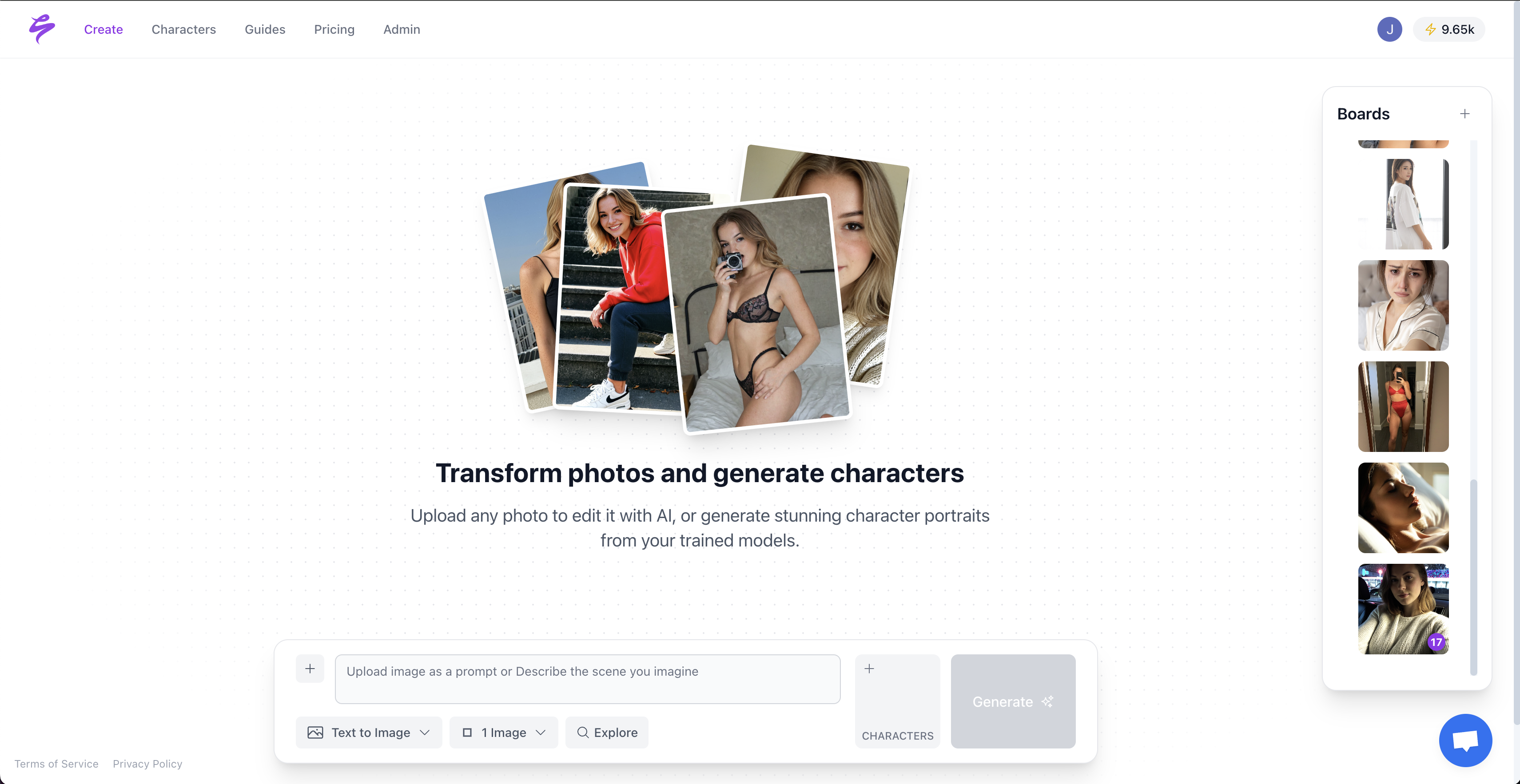
- Sozee focuses on consistency, which many tools leave unresolved. Upload three photos to create a character with a locked likeness. Then direct motion through Photo Control’s five dimensions: Setting, Outfit, Shot style, Expression, and Object. Reusable environments and outfits compound across shoots, so you build your world once and reuse it for future sessions. This structure gives you a studio-style workflow with repeatable results.
Step-by-Step Workflow: Converting a Photo into an AI Video
This workflow follows the structure Google surfaces for this query and works across most tools, with Sozee-specific notes where the process differs from generic generators.

- Choose your tool based on your needs. For a quick one-off clip, Canva or Runway fits. For consistent character identity across many videos and shoots, Sozee’s locked likeness and Photo Control keep your face and body stable from frame to frame.
- Prepare your source photo. Use high resolution, with 1080p as a minimum and 4K preferred, plus a clear subject and good lighting. Low-quality inputs force the model to invent detail, causing warping and artifacts. The clip can only match the quality of the starting image.
- Upload the photo to your chosen tool. Most tools accept JPG, PNG, or WebP. Runway also accepts AVIF and GIF for reference inputs.
- Set motion parameters. Define camera movement such as push-in, pan, or orbit, along with subject movement and mood. Sozee’s Photo Control lets you set five dimensions precisely: Setting, Outfit, Shot style, Expression, and Object. This structure reduces guesswork from text-only prompts.
- Write a detailed prompt. Use the formula in the next section and adapt the examples to your scene.
- Generate and review. Most tools produce 5–15 second clips. Keep clips to 4–6 seconds to reduce identity drift and artifacts, because clips over 10 seconds show much more temporal inconsistency. For longer content, generate multiple short clips and edit them together.
- Export in the correct aspect ratio and resolution. Match your target platform: 9:16 for Reels and TikTok, 16:9 for YouTube. Generate at the model’s highest native resolution and avoid upscaling from a low base.
How to Write Effective Prompts for Photo-to-Video AI
A prompt gives direction instead of a vague wish. The formula is: [Subject] + [Action] + [Camera movement] + [Setting] + [Mood/lighting]. The critical rule: describe only the new motion you want added, not the scene already in the photo, because the image already locks the scene. If a sentence in your prompt repeats something visible in the source image, remove it.
Example prompts across common photo types:
- Portrait: “She turns her head slightly toward the camera and smiles, hair drifting in a light breeze. Slow push-in. Golden hour lighting, soft bokeh background. Preserve facial identity and clothing. No sudden head movement, no warped face.”
- Landscape: “Low morning mist rolls across the valley floor while clouds drift over the ridge. Camera does a slow dolly forward at ground level. Preserve lighting direction. No morphing terrain, no color shift.”
- Product: “The sneaker rotates slowly on a turntable, studio light raking across the mesh. Camera orbits left in a slow arc. Clean seamless backdrop. No warped logo, no melting laces.”
- Pet: “The dog’s ears perk up as it looks off-frame, then returns gaze to camera. Gentle zoom. Warm indoor lighting. Keep fur texture stable. No extra limbs.”
- Group photo: “The couple turns toward each other and shares a laugh, arms around waists. Camera tracks right slowly. Candid documentary style. Preserve both faces exactly. No identity drift.”
Sozee users can rely on the @-reference system to attach saved environments, outfits, or objects directly in the prompt as color-coded chips. This approach removes the need to re-describe elements the model already stores. Consistency then comes from structure instead of prompt repetition.
Turning Multiple Photos into a Cohesive Video Montage
Once you feel comfortable with single-image prompts, you can extend the same principles to combine multiple photos into a unified video montage. Select 3–5 images that tell a sequential story, upload them in order, and use a prompt that describes the transitions. For example: “crossfade between scenes, consistent lighting direction, same character throughout.” Many tools handle single images only and require manual stitching in a separate editor.
Sozee’s Photo Shoot feature takes a different approach. It generates a coherent set of up to ten images from a single source frame, with identity, outfit, and environment locked while angle, pose, and expression vary. This process gives you a month of content from one photo, with a complete set you can animate into video clips that stay consistent with each other. For creators managing high-volume content schedules, this path turns a single asset into a full content calendar.
Free vs. Paid Options: Picking the Right Tier
Free tools such as Viggle, Canva’s free tier, and Hailuo’s daily credits often include watermarks, lower resolution around 480p–720p, and strict generation limits. Most AI models train on sub-1080p datasets, and streaming compression strips another 30–40% of detail, so starting with a paid tool that outputs native 1080p or 4K helps content survive platform compression.
For creators who monetize content, the economics favor paid tools. 56% of creators report saving over 30 minutes per video using AI tools, and 50% plan to increase AI spending next year. Among creators who have done brand deals, 42% reported higher client satisfaction and 40% secured more brand partnerships after adopting AI tools. Demand for content outstrips human production capacity by an estimated 100 to 1, so a premium tool that compresses a month of content into an afternoon often pays for itself quickly.
Troubleshooting Common Image-to-Video Problems
Most AI video failures happen when the model must guess at details the creator already knows but does not specify. The fix usually involves giving the model clearer input or tighter constraints.
- Blurry results: Start with a sharp, high-resolution source image. Generate at 2x your target resolution to offset compression losses during upload and streaming. If the base image looks soft, run it through an upscaler before generation. The model cannot recover detail that never existed.
- Inconsistent faces: This issue appears across nearly every tool category. Identity drift happens because without a locked reference, the model regenerates its best guess on every frame, and small variations compound over the clip’s length. A structural fix requires a tool with locked likeness. Sozee maintains the same face and body across every frame by design, using architecture instead of prompts to preserve identity.
- Artifacts and warping: Keep clips short (as noted above), avoid complex or cluttered backgrounds, and write specific prompts with negative constraints such as “no extra fingers, no warped face, no melting edges.” Trimming the first and last 0.5 seconds of a generated clip removes the frames where the model is most likely to produce artifacts.
- Jittery motion: When everything moves at once, the model must redraw more of the frame and consistency degrades. To avoid this, reduce motion strength, generate shorter clips, and separate subject motion from camera motion in your prompt. A subtle head turn with stable lighting often looks more professional than a complex animated scene that stretches the model.
Why Sozee Fits Creators Who Monetize Content
Sozee functions as a full AI Content Studio built for creators who earn from their content. Every feature supports output volume, consistency, or scale.
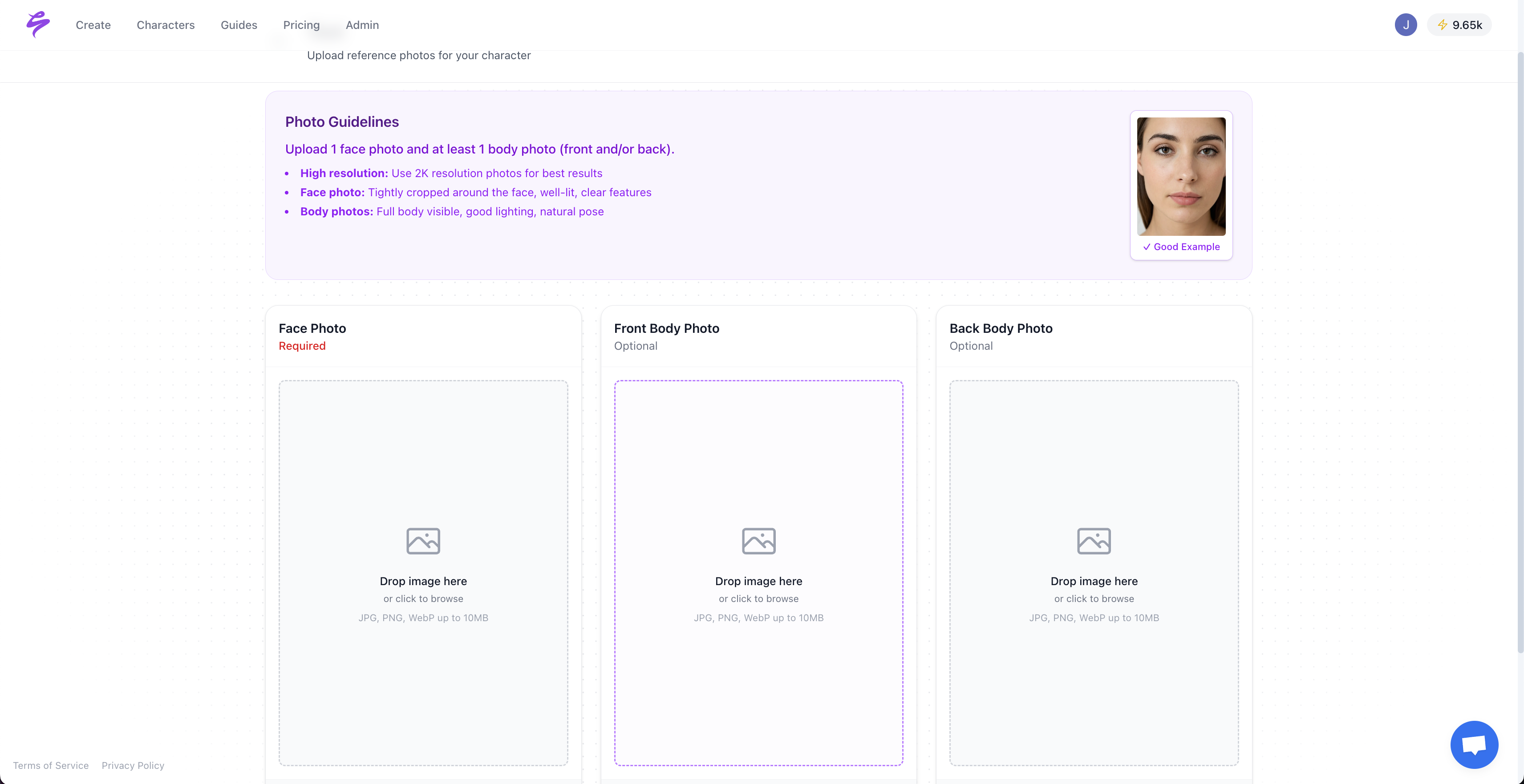
- Locked likeness: Upload three photos and Sozee reconstructs your character with hyper-realistic accuracy. You keep the same face and body across every frame, shoot, and week.
- Photo Control: Five dimensions, including Setting, Outfit, Shot style, Expression, and Object, give you directorial precision instead of prompt gambling. You can fill each slot by upload, library pull, or @-reference inline.
- Reusable environments: Build a location from up to four reference shots. The room stays consistent, so you can shoot in it for a year without re-describing it.
- Live Mode: Real-time character transformation on your webcam or phone. You act, your character performs, and you capture the frames you want as you go.
- The Agent: A conversational copilot that interviews you into a finished setup, resolving character, setting, wardrobe, shot, expression, and output. It then writes directly into the prompt bar and Photo Control panel, placing you one tap from Generate.
Sozee addresses the content-demand gap by letting creators produce large volumes of consistent content without burnout. One focused afternoon can become a month of scheduled posts.
Frequently Asked Questions
Can AI convert photos into videos?
Yes. Tools including Sozee, Runway, Canva, Kling, and Pika all offer image-to-video capabilities. The general workflow is to upload a still image, add a text prompt that describes the desired motion, and let the AI generate a short video clip, typically 5–15 seconds, with realistic movement and camera dynamics. Output quality, motion control, and consistency vary significantly between tools. As of 2026, the strongest results come from tools that treat the source image as a locked first frame and animate only what the prompt specifies.
What is the best free app to turn photos into videos?
Viggle offers free character animation through Discord using its JST-1 model, and Canva’s free tier includes limited image-to-video generation powered by Google Veo 3. Hailuo AI by MiniMax provides 3–5 daily generations at 720p with no credit card required and no watermark on its free tier. Across free options, you trade off watermarks, resolution caps at 720p or lower, and restricted monthly generation counts. Sozee offers a free trial that includes its full studio workflow, including locked likeness, Photo Control, and reusable environments, so you can test whether consistency solves your content problem before choosing a paid plan.
How do I keep the same face in every video?
The only reliable approach uses a tool with locked likeness technology built into its architecture. Prompt-based tools regenerate the face on every frame using their best guess, and small variations compound across the clip’s length, which creates identity drift that prompts alone cannot fully fix. Sozee lets you upload three photos to create a consistent character, then maintains that identity across every generation, including photo sets, video clips, Live Mode, and video-to-video. The face becomes a saved asset, stored and reused across every generation. This distinction separates tools that simply generate images from tools that support a long-term brand.
How long does it take to generate a video?
Most tools generate a 5–10 second clip in 30 seconds to several minutes, depending on model complexity, resolution settings, and server load. Runway and Kling often sit at the longer end at high quality settings. Pika 2.5 is the fastest in its category. Sozee’s optimized pipeline delivers results in seconds to minutes, and its batch generation and scheduling features let you produce and publish a full month of content in a single afternoon, including animated video clips, photo sets, captions, and scheduled posts across Instagram, TikTok, and other platforms.
How do I turn multiple photos into a video?
The standard workflow starts with selecting 3–5 photos that tell a sequential story. Upload them in order to your chosen tool, then use a prompt that describes the transitions and consistent elements, such as “crossfade between scenes, preserve character identity and lighting direction throughout.” Many single-image tools require manual stitching in a separate video editor. Sozee’s Photo Shoot feature generates a coherent set of up to ten images from a single source frame, with identity, outfit, and environment locked while angle, pose, and expression vary. This gives you a ready-made content set you can animate and schedule without extra production work.