Key Takeaways for Your SFW Content System
- A structured 9-step SFW pipeline removes visual drift, outfit randomness, and common policy violations from ad-hoc prompting.
- Core stages include building a locked character bible, enforcing visual consistency with reference frames and style bundles, and batch-producing 7–10 posts in one session.
- Built-in SFW filters, manual review, and compliant caption generation keep every asset within Instagram and TikTok community guidelines before scheduling.
- Weekly analytics reviews feed winning formats back into the Style Library, creating compounding performance gains and cutting weekly execution time to under 20 minutes.
- Sozee runs the full workflow in one private workspace. Create your Sozee account now to begin the 3–4 hour first-week setup.
What You Need Before You Start
Gather an active Sozee account, three reference photos or a written blank-slate character brief, working knowledge of Instagram and TikTok community guidelines, and a clear understanding of FTC disclosure requirements for AI-generated influencer content. The first-week setup takes about three to four hours. Once the pipeline runs smoothly, weekly maintenance usually stays under two hours.
Create your Sozee account now to begin the 3–4 hour first-week setup.
Step 1: Build a Character Bible and Shared Reference Sheet
Objective: Create a single source of truth for your character’s appearance, personality, and voice before you generate any images.
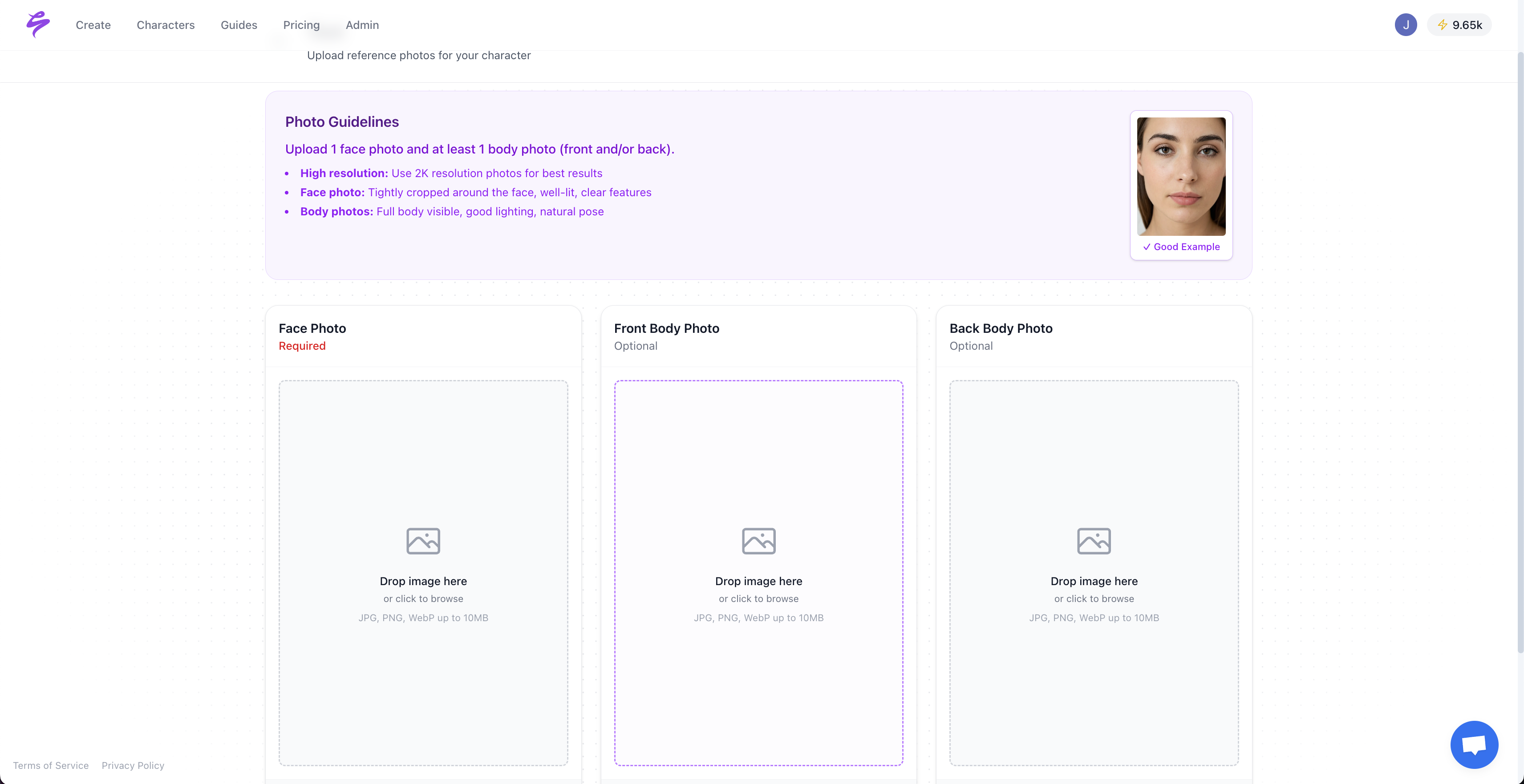
Sozee Action: Inside your Sozee workspace, open a new character project and use the Copilot to generate a structured character bible. Add your three reference photos or paste your written brief.
Ready-to-Copy Prompt: “Create a character bible for a virtual influencer named [Name]. Age range: 22–26. Style: minimalist streetwear. Tone: confident, approachable. Hair: dark brown, shoulder-length. Eye color: hazel. Skin tone: medium warm. Personality: witty, brand-safe, aspirational.”
Pro Tip: Pin the completed character bible inside Sozee so every team member and every future Copilot session pulls from the same baseline.
Step 2: Lock Visual Identity with a Canonical Photo
Objective: Keep facial structure and expressions consistent across all generated assets.
Sozee Action: Use Sozee’s Photo Control feature to set a canonical reference frame, locking the angle, expression, and lighting baseline that future generations must match.
Ready-to-Copy Prompt: “Match facial structure, eye shape, and skin tone exactly to reference frame A. Neutral expression, soft front-facing light, no heavy shadow.”
Pro Tip: Save this canonical frame as your AI character reference sheet in the Style Library. Load it at the start of every weekly batch session to reset the visual anchor.
Step 3: Write SFW Scene Prompts with Safety Modifiers
Objective: Use scene prompts that structurally avoid policy-violating outputs.
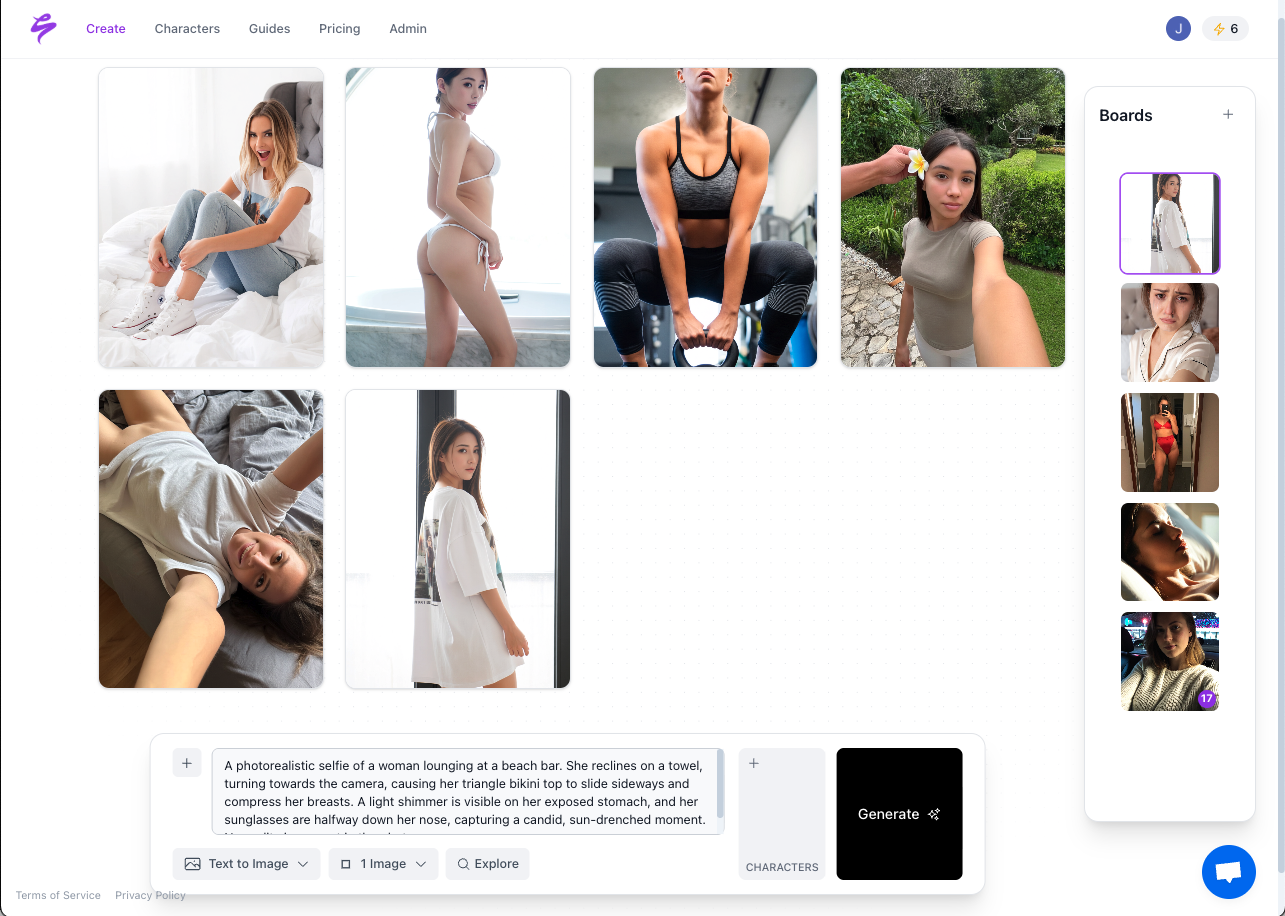
Sozee Action: Use Sozee’s prompt builder with mandatory SFW modifiers attached to every generation call.
Ready-to-Copy Prompt: “Outdoor café setting, golden hour, character seated at table, fully clothed in casual linen outfit, no skin below collarbone, no suggestive posing, editorial photography style.”
Pro Tip: Save this modifier block as a reusable snippet inside Sozee so it auto-appends to every new scene prompt without manual re-entry.
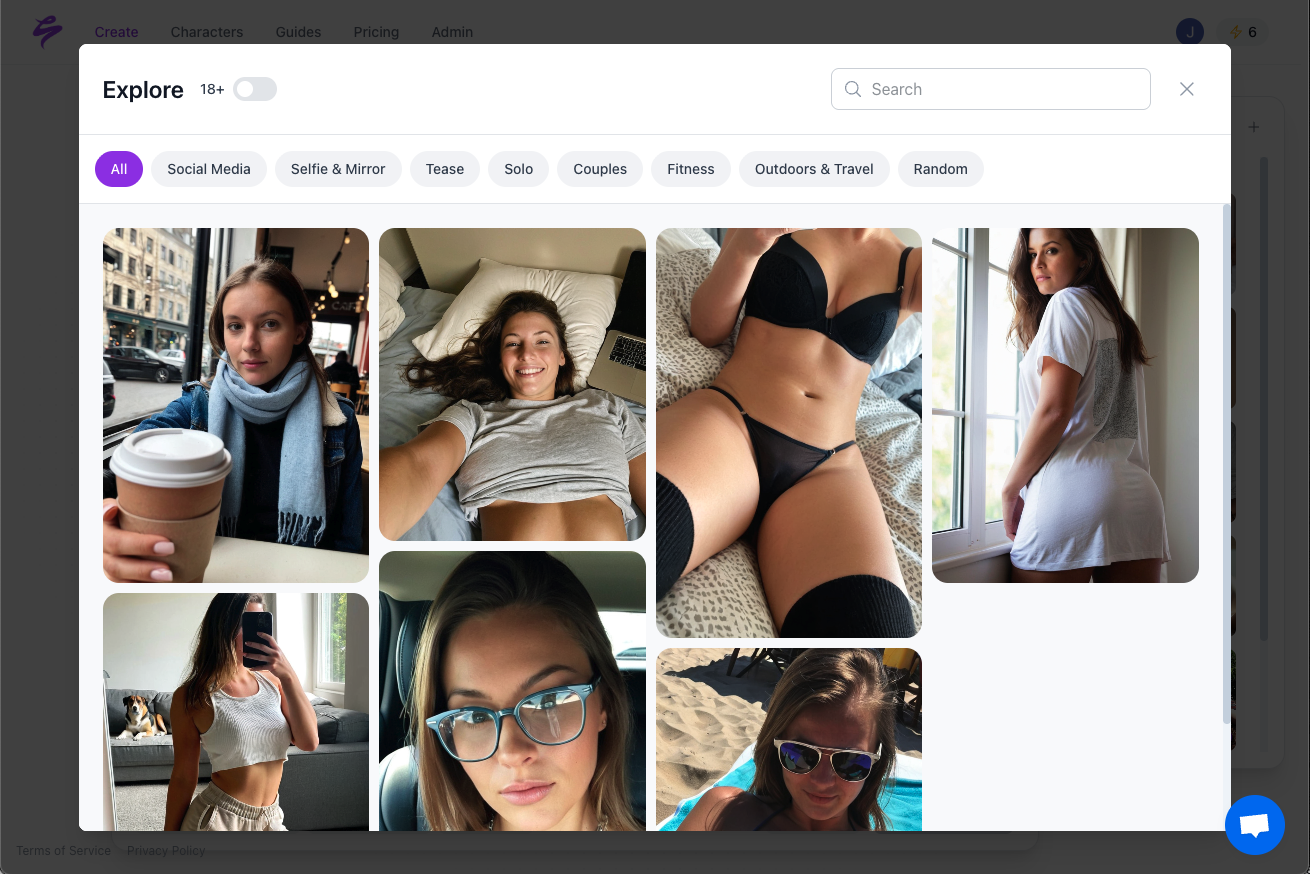
Common Pitfall — Prompt Drift: Dropping safety modifiers “just this once” to test a look often triggers accidental NSFW generation. Keep the full modifier block active for every batch.
Step 4: Keep Outfits and Lighting Consistent with Style Bundles
Objective: Dress the character in recognizable, on-brand outfits instead of random clothing.
Sozee Action: Build named Style Bundles inside Sozee, such as “Monday Streetwear,” “Wednesday Café Look,” and “Friday Editorial.” Each bundle should include locked outfit descriptions, lighting presets, and color palette constraints.
Ready-to-Copy Prompt: “Apply Style Bundle: Monday Streetwear. Oversized cream hoodie, dark slim jeans, white sneakers, soft overcast daylight, muted warm tones.”
Pro Tip: Rotate three to five Style Bundles per week. This keeps variety high while fans still recognize the character’s wardrobe and overall aesthetic.
Step 5: Batch-Produce 7–10 Posts with Reel Cloning
Objective: Produce a full week of content in one focused session instead of creating posts one by one.
Sozee Action: Use Sozee’s Reel Cloning feature to identify a high-performing TikTok or Instagram reel format and recreate it in your character’s likeness across multiple scene variations in a single batch run. Once your batch is complete, the next critical gate is content safety, so every asset must pass review before it enters your publishing workflow.

Ready-to-Copy Prompt: “Clone reel format: [paste URL or describe format]. Apply to character [Name] using Style Bundle: Wednesday Café Look. Generate five scene variations with different background depths.”
Pro Tip: Batch seven to ten posts in a single Monday session. This keeps the model’s context stable and reduces drift that appears when you generate across several days.
Open Sozee’s batch generation tool and produce your first 7-post content week in one session.
Step 6: Filter for SFW Compliance and Run a Manual Review
Objective: Catch policy-violating outputs before they reach the scheduling queue.
Sozee Action: After batch generation, run Sozee’s built-in SFW filter on the entire asset set. Then conduct a manual review, viewing each asset at full resolution before you approve it for scheduling.
Ready-to-Copy Checklist: Start with body coverage, with no visible skin below the collarbone or above mid-thigh. Next, check posing and framing for suggestive angles. Then scan any text overlays for policy-violating language. Finally, review background elements to confirm they are neutral and safe for your brand.
Pro Tip: The SFW filter catches most violations automatically. The manual pass catches contextual issues the filter misses, such as background signage or awkward framing.
Common Pitfall — Accidental NSFW Leakage: Inpainting edits after the SFW filter run can reintroduce violations. Re-run the filter after any inpainting session before you approve assets.
Step 7: Write Compliant Captions and Alt Text with Copilot
Objective: Create captions that match the character’s voice, drive engagement, and satisfy FTC AI disclosure rules.
Sozee Action: Open Sozee’s Copilot and input the approved asset plus the relevant character bible excerpt. Request a caption with disclosure language, relevant hashtags, and platform-specific character counts.
Ready-to-Copy Prompt: “Write an Instagram caption for this image. Tone: confident and warm. Include FTC-compliant AI disclosure in the first three lines. Max 150 words. Include five relevant hashtags. Also write alt text describing the image for accessibility.”
Pro Tip on Disclosure Placement: On Instagram Reels, place the AI disclosure label in the first line of the caption and enable Instagram’s native “AI-generated content” label in advanced settings. On TikTok, enable the AI-generated content toggle before publishing. Both platforms require disclosure to appear without expanding the caption.
Step 8: Schedule Posts in Sozee with Correct Aspect Ratios
Objective: Publish at strong times while staying inside Sozee and avoiding manual resizing.
Sozee Action: Use Sozee’s scheduling tool to assign each approved asset to a posting slot. Select the destination platform, such as Instagram Feed, Instagram Reels, or TikTok, and Sozee applies the correct aspect ratio. Use 1:1 or 4:5 for Instagram Feed and 9:16 for Reels and TikTok.
Ready-to-Copy Schedule Template: Monday 9 AM — Instagram Feed. Tuesday 6 PM — TikTok. Wednesday 12 PM — Instagram Reels. Thursday 7 PM — TikTok. Friday 10 AM — Instagram Feed. Saturday 5 PM — Instagram Reels. Sunday 3 PM — TikTok.
Pro Tip: Use Sozee’s analytics from the prior week to shift posting times toward your highest-engagement windows on each platform. Adjust the schedule template monthly so you have enough data before you change it.
Step 9: Turn Analytics into a Growing Style Library
Objective: Convert performance data into a style advantage that compounds over time.
Sozee Action: Open Sozee’s analytics dashboard at the end of each week. Identify the top two or three posts by engagement rate. Save the Style Bundle, scene prompt, and caption structure from each winning post back into the Style Library with a performance tag.
Ready-to-Copy Action: Tag winning assets as “High Performer — [Week Date]” and note the Style Bundle name, lighting preset, and caption tone. Use these tags when you brief the Copilot for the next week’s batch.
Pro Tip: After four weeks, the Style Library holds a curated set of proven formats. The Copilot can then auto-generate a monthly content calendar by remixing high-performer tags, which reduces weekly execution time to under 20 minutes. This compounding effect drives the performance benchmarks you should expect from a mature pipeline.
Success Metrics for a Healthy SFW Pipeline
A pipeline running correctly on this system should produce at least 28 posts per month across Instagram and TikTok, record zero community-guideline violations, and reach about a 15% week-over-week engagement lift by week four as the Style Library matures. Total weekly maintenance time should stay under 90 minutes after the first-week setup. If any metric falls below these thresholds, start diagnostics at Step 6 to review SFW filtering and manual checks, then move to Step 9 to confirm that winning styles are recycled correctly.
Advanced Tips for Agencies and Multi-Character Teams
Agencies managing multiple virtual influencer accounts can add approval workflows inside Sozee, requiring a senior reviewer to sign off on each batch before assets enter the scheduling queue. This creates an auditable content trail that satisfies safety requirements for sponsored partnerships. For cross-platform seeding, use Sozee to export SFW teaser packs, with watermarked preview sets formatted for X and YouTube Shorts, that drive traffic back to the main Instagram and TikTok accounts. Once the Style Library contains four or more weeks of tagged high-performer data, instruct the Copilot to auto-generate a full monthly content calendar in a single session, with posting days, Style Bundles, scene types, and caption tones for every slot. This shifts your workflow from weekly 20-minute execution sessions to a single monthly 30-minute strategic review, consolidating four weeks of planning into one session.
Frequently Asked Questions
How often should the character bible be updated?
The character bible should be reviewed monthly and updated only when you make a deliberate brand evolution decision, such as a seasonal wardrobe shift or tone adjustment. Updating more often introduces the same inconsistency that ad-hoc prompting creates. Minor variations in scene or setting do not require a bible update. Only changes to core visual identity or personality attributes should trigger edits.
Does Sozee store character likenesses privately?
Yes. Sozee runs on a private, isolated model architecture. Each character’s likeness model stays inside that creator’s workspace and never trains shared models or becomes accessible to other users. This applies to characters built from uploaded reference photos and to fully AI-generated original characters with no source photos.
How should AI-generated content be disclosed on Instagram Reels and TikTok?
On Instagram Reels, enable the native “AI-generated content” label in advanced settings before publishing and include a clear disclosure in the first three lines of the caption so it appears without expansion. On TikTok, toggle the AI-generated content disclosure in the posting interface before the video goes live. Both platforms enforce these requirements in addition to FTC guidelines, so creators must satisfy both sets of rules. Sozee’s Copilot generates captions with compliant disclosure language already inserted.
What should be done if character consistency slips mid-week?
Return to Step 2 and reload the canonical reference frame saved in the Style Library. Run a single test generation against that frame before you resume the batch. Consistency slippage usually occurs when the canonical reference frame is not loaded at the start of a new session or when inpainting edits happen without re-anchoring to the reference. Pause the batch until the test generation matches the reference frame within acceptable tolerance.
Can this pipeline scale to multiple virtual influencer characters simultaneously?
Yes. Each character runs as a separate project inside Sozee with its own character bible, Style Library, canonical reference frame, and scheduling queue. Agencies managing multiple characters assign each to a named workspace and use Sozee’s approval workflow to route assets through the correct review chain before publishing. The Copilot can be briefed on multiple characters in sequence within a single session, generating batch content for each before any scheduling occurs.
Does this pipeline work for TikTok Spark Ads?
Yes, with one additional check. Before boosting any post as a Spark Ad, verify that the AI disclosure label applied at the organic posting stage remains visible in the ad format. TikTok’s Spark Ads system usually carries forward the original post’s labels, but confirm this in Ads Manager before the campaign goes live. All SFW filter checks and manual review passes from Step 6 apply to content intended for paid amplification, and the same FTC disclosure requirements cover sponsored AI-generated content for both organic and paid posts.