Last updated: May 24, 2026
Key Takeaways
- AI photos lose reach when they are cropped badly, compressed harshly, or look inconsistent across batches. Sozee’s workflow fixes all three issues in one repeatable loop.
- Generate every image at the platform’s native aspect ratio using Sozee’s presets to avoid automatic cropping and preserve visual quality.
- Lock skin tone, lighting, and wardrobe with reusable prompt templates and batch color presets so 50+ images share the same brand look.
- Respect safe zones for text, logos, and faces, then export at JPEG 90% quality, sRGB, and 1080 px to handle platform compression without visible artifacts.
- Organize batches into teaser packs and carousels, schedule directly or via Zapier, and start your free Sozee trial today to turn three reference photos into a full week of optimized content.
Step 1 – Generate in Native Aspect Ratios with Sozee’s Ratio Presets
Every platform enforces a native display ratio, and any image that falls outside it gets cropped automatically, often cutting into a face or logo. Instagram feed images are accepted between 4:5 and 1.91:1, with Stories and Reels using 9:16. Hootsuite confirms that for X, 1:1 and 16:9 are the safest options, while OnlyFans carousels perform best in portrait orientations that mirror Instagram’s 4:5 standard.
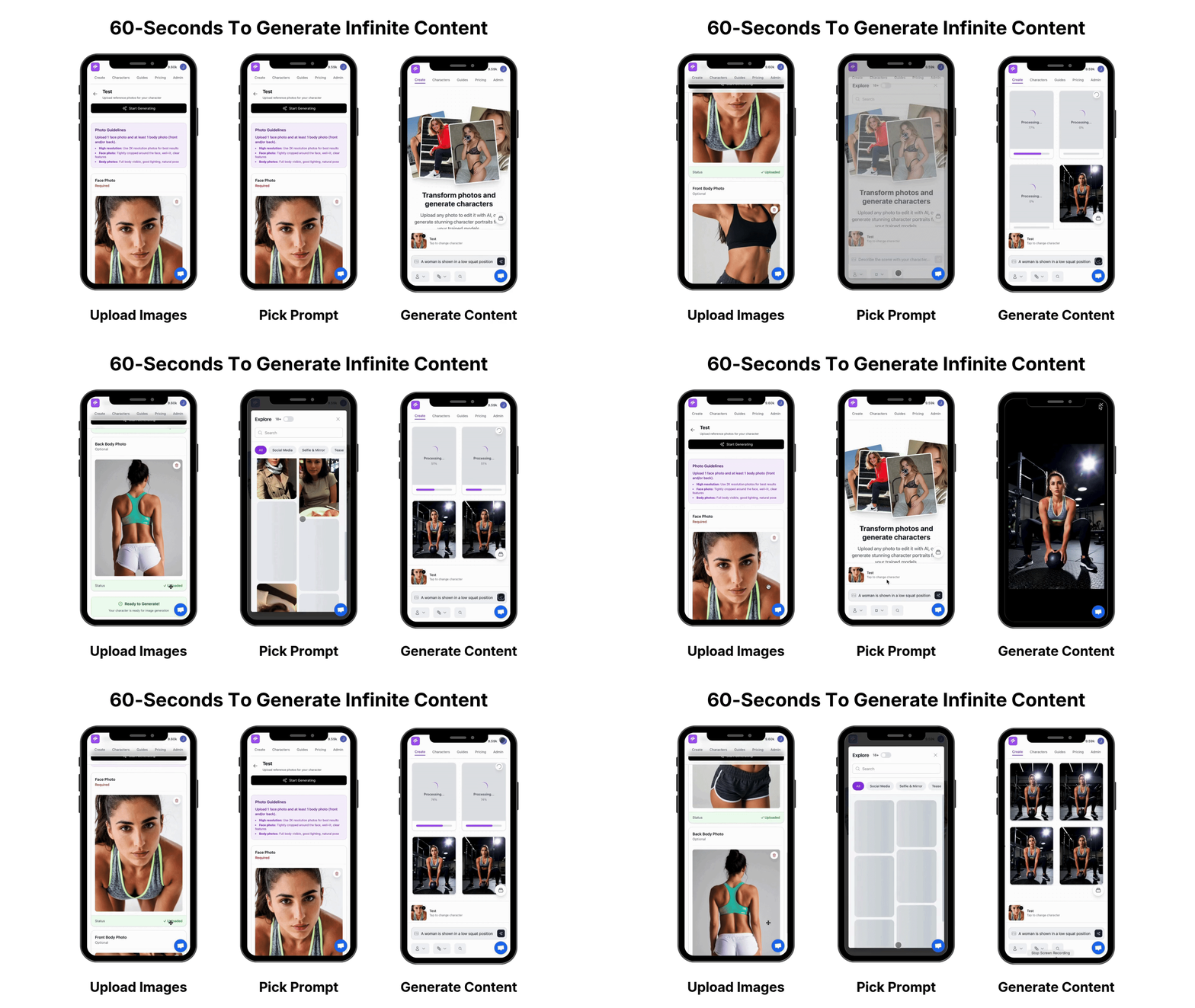
Sozee’s ratio presets remove manual cropping from your workflow. Select the destination platform before generation, and every image in the batch is composed on the correct canvas from the first pixel. Instagram requires a minimum upload width of 1080 pixels for feed posts, so Sozee defaults to 1080 px on the longest edge for all feed presets and 1080×1920 for all vertical Story and Reel outputs.
Step 2 – Use Prompt Templates That Lock Skin Tone, Lighting, and Wardrobe
Correct aspect ratios prevent cropping issues, but they do not guarantee that a batch feels like one cohesive shoot. Visual drift across a batch usually comes from inconsistent prompting. Adobe Firefly’s prompt guidance recommends a fixed framework: [Style] image of [subject], [lighting], [color palette], [mood]. The same structure works inside Sozee.
A reliable repeatable formula is: subject description + lighting setup + color palette + mood + technical quality descriptors. For example: “photorealistic portrait of [likeness], soft studio rim lighting, warm amber and ivory palette, confident editorial mood, sharp focus, 1080px.” Keeping terminology identical for elements that must remain constant is the single most effective technique for producing consistent outputs across a batch.
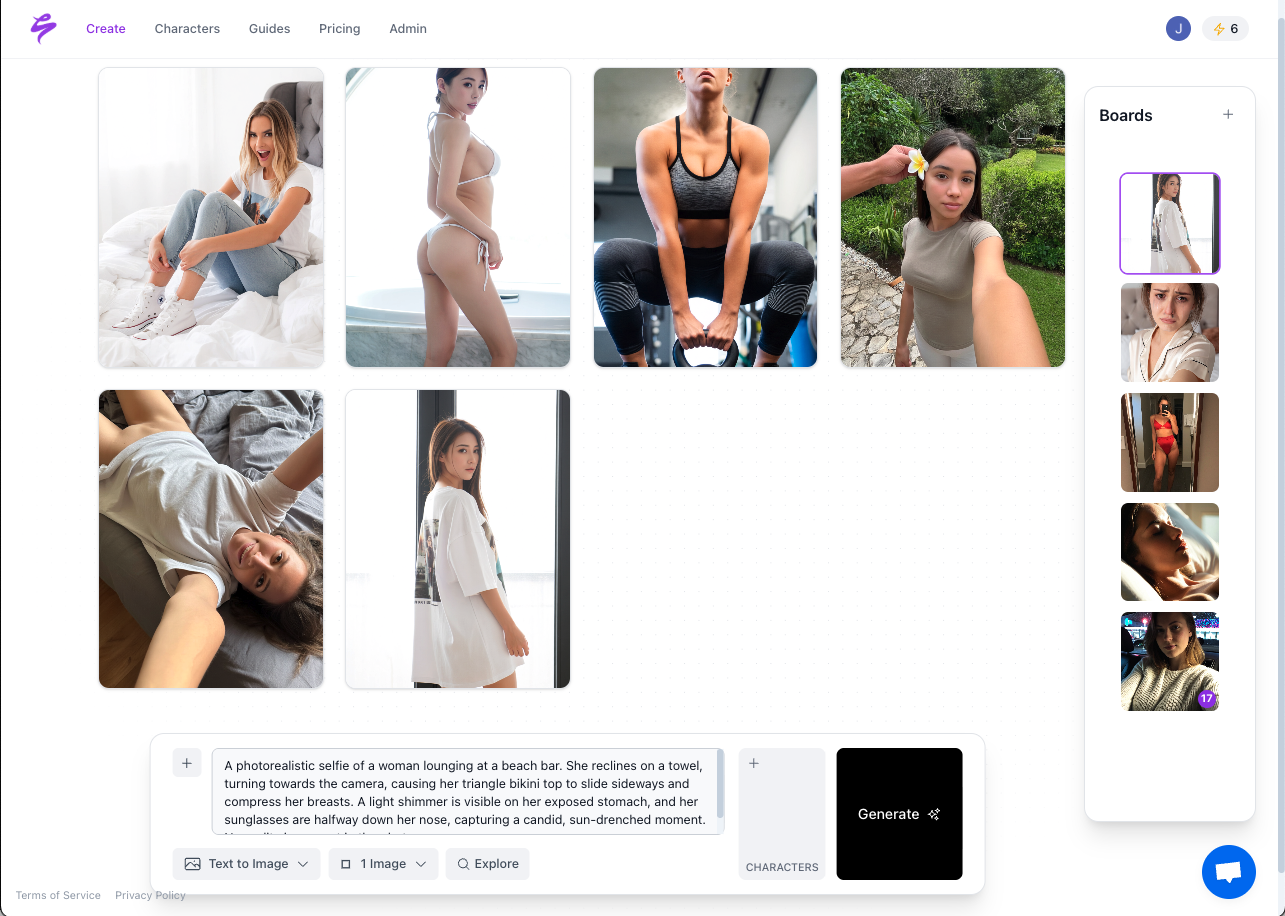
Save every winning prompt as a named bundle inside Sozee’s prompt library. Swap only the variable elements such as wardrobe, background, or pose while skin tone, lighting rig, and color palette stay locked. Brand consistency comes from repeatable prompt structures plus saved style references, not one-off prompting.
Step 3 – Apply Batch Color and Lighting Presets for a Single Brand Look
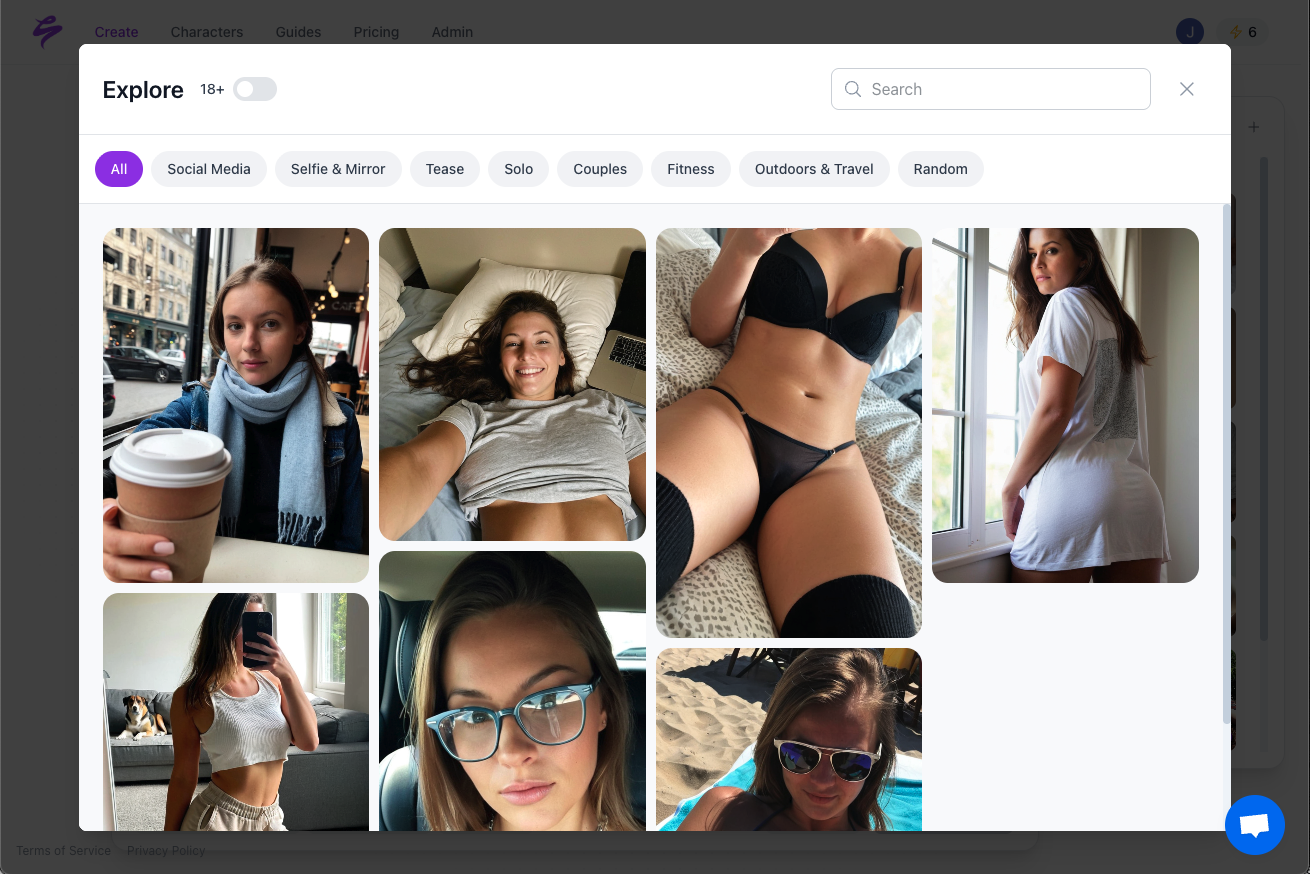
Locked prompts keep structure stable, but minor generation variance can still make a feed look like it came from several different photographers. Sozee’s batch color and lighting presets apply a single brand look across every image in a set with one click. Contrast, saturation, shadow depth, and highlight rolloff are normalized so the 50th image in a batch reads as part of the same visual system as the first.
This step matters most for agencies that manage multiple creator accounts, where maintaining distinct visual identities across many creators would otherwise require manual color grading for every batch. A preset saved under a creator’s profile can be reapplied to any future batch, which turns visual cohesion into a system property instead of a manual chore. That reusability only works when the creative direction is locked before generating at scale, because a stable visual system reduces drift and prevents constant pivots.
Step 4 – Protect Text, Logos, and Faces with Safe Zones
Platform UI elements such as progress bars, profile icons, and caption overlays always sit in the same parts of the screen. Placing a face or key visual in those areas almost guarantees that it will be covered on at least one surface. Hootsuite specifies an Instagram Story safe area of 1080×1610 pixels and recommends leaving approximately 14% from the top and 20% from the bottom free of text, logos, and important creative elements.
Sozee’s overlay tools display safe-zone guides directly on the canvas during generation and refinement. Any text, watermark, or logo placed outside the safe zone is flagged before export. This safeguard removes one of the most common reasons for quality rejections in agency approval queues.
Common Pitfall #1: Ignoring safe zones and exporting at 4K. Platforms re-encode anything above their native resolution ceiling, which introduces compression artifacts that look worse than a correctly sized original. A 4K export does not survive Instagram’s encoder intact. Always generate at 1080 px longest edge and respect the safe-zone margins above.
Step 5 – Export with Settings That Survive Platform Compression
Protecting key elements from UI overlays solves the composition problem, but even a perfectly composed image will degrade if the file is not prepared for compression. Platform encoders are aggressive, so the export goal is to give each encoder as little work as possible. The correct settings are sRGB color space, JPEG at 90% quality, 1080 px on the longest edge, and platform-specific filenames that include the destination and date for version control. JPEG compression creates blocky artifacts and color banding that become more visible when images are upscaled or re-encoded by a platform. Starting from a clean, correctly sized source file reduces that risk.
For master archive files, PNG or TIFF preserves lossless detail, but these formats should not be uploaded directly to social platforms. Export the social-ready JPEG from the master and keep the master offline from social uploads.
Step 6 – Turn Raw Batches into a 70/20/10 Content Mix
Raw image batches are not content strategies, and unplanned posting often creates feeds that feel either too sales-heavy or too passive to convert. Without a deliberate distribution, a grid can look like a catalog or a mood board instead of a monetization engine. A 50-image batch should be organized into a 70/20/10 mix: 70% value-driven or lifestyle content that builds audience, 20% promotional or conversion-focused posts, and 10% experimental formats that test new angles or aesthetics. This distribution keeps a feed from feeling like a catalog while still driving monetization.
Within each content type, create three thumbnail variations per post and A/B test them. 60% of marketers now use AI tools daily, so the competitive bar for visual quality keeps rising. A/B testing shows which crop, expression, or color grade drives the highest click-through before a post is promoted or pinned. Sozee’s packaging tools allow teaser packs for TikTok and Instagram, carousel sets for feed and OnlyFans, and PPV gallery drops to be assembled directly from the approved batch without re-exporting.
Step 7 – Automate Scheduling from Sozee to Your Social Stack
Once content sets are packaged, consistent scheduling turns them into predictable reach. For solo creators, Sozee’s built-in scheduler pushes approved batches to Instagram, TikTok, X, and OnlyFans on a defined cadence. For agencies, the approval workflow routes each batch through a named reviewer before any post goes live, which maintains brand standards without extra coordination.
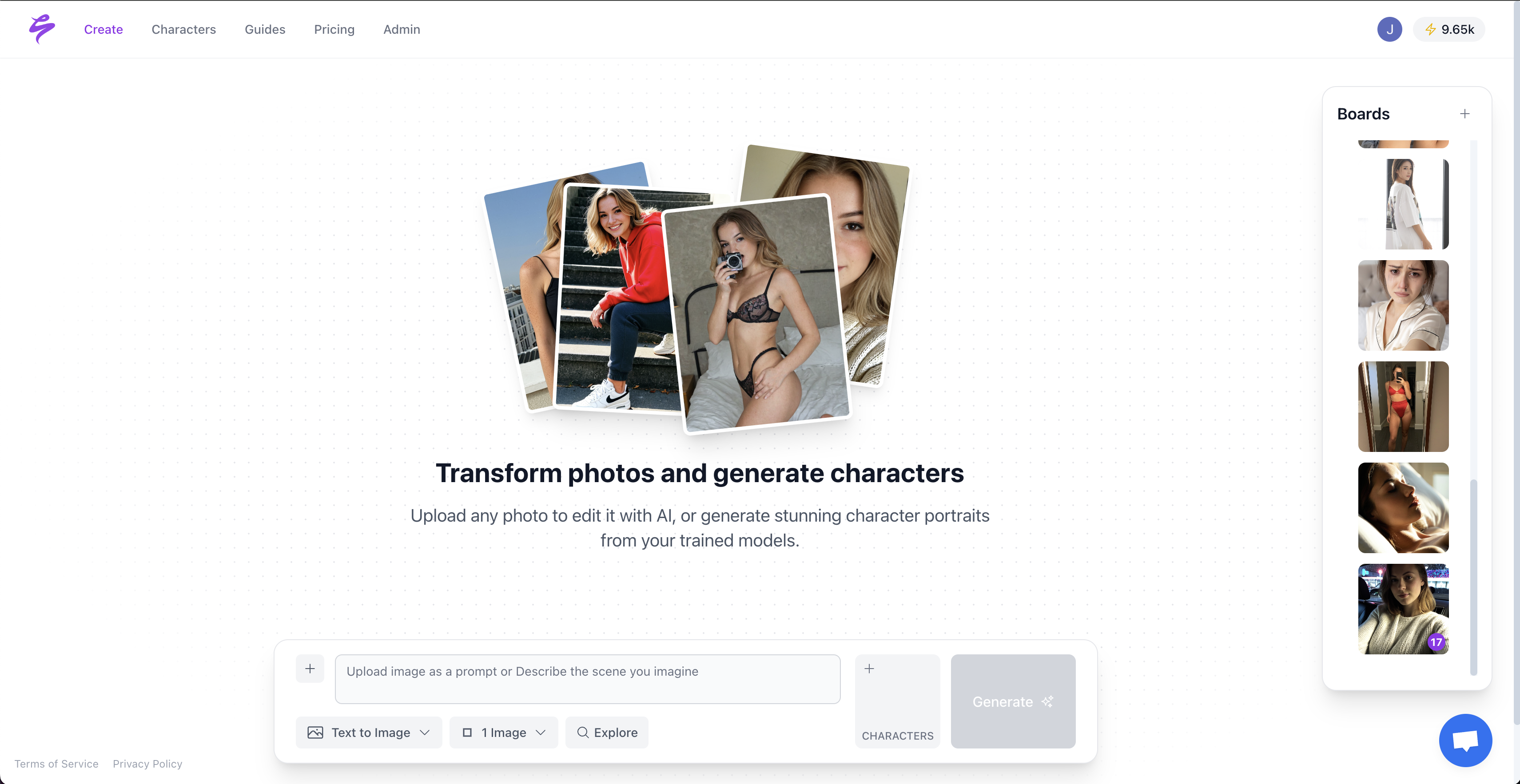
Teams that use Later, Buffer, or Hootsuite as their scheduling layer can export directly from Sozee in platform-ready packages. Zapier integration connects Sozee’s output folder to any downstream tool and supports conditional triggers, such as automatically adding every approved image to a Buffer queue or notifying a Slack channel when a batch clears review. Effective workflow platforms support orchestration across multiple tools with conditional logic and sequential triggers.
Measure Success: Track Output, Engagement, and PPV Conversion
This workflow aims for zero quality rejections in the first two weeks, a measurable engagement lift by day 14, and a higher PPV conversion rate by the end of the first month. Track these three metrics against the baseline from the two weeks before adopting the pipeline.
Common Pitfall #2: AI likeness drift across long-running campaigns. Drift occurs when prompt bundles are modified incrementally without version control, or when new reference images are introduced mid-campaign without re-anchoring the style preset. Using negative prompts to filter unwanted elements reduces drift across multiple generations. In Sozee, save a locked “campaign anchor” preset at the start of every new content series and never overwrite it.
Advanced Tips: Brand Looks, Automation, and Short AI Video Layers
Once the seven-step loop runs reliably, three extensions compound its output by reducing manual work and expanding content variety. First, save each successful color-and-lighting combination as a named brand look inside Sozee so it can be applied to future campaigns in one click, which removes the need to rebuild proven aesthetics from scratch. Second, use Zapier to chain Sozee’s export trigger to a content calendar update, a scheduling queue addition, and a team notification at the same time, which removes the coordination overhead that usually follows batch approval. Third, layer short AI video clips generated from the same reference likeness into the posting mix to satisfy platform algorithms that currently favor video inventory, so you diversify formats without creating new reference material. Keeping track of prompt versions and parameter sets supports iteration without losing brand cohesion or reproducibility.
Frequently Asked Questions
How do I stop Instagram from cropping my batch AI photos?
Generate every image at the native aspect ratio for its intended placement before uploading. As covered in Step 1, Instagram feed posts require aspect ratios between 4:5 and 1.91:1, and the most reliable portrait format is 1080×1350, which Sozee’s feed preset applies automatically. Stories and Reels use 9:16 at 1080×1920. Sozee’s ratio presets apply the correct canvas at generation time, so no post-production cropping is needed. As explained in Step 4, keep all critical visual elements within the Story safe area to prevent UI overlays from obscuring them.
What export settings preserve sharpness when uploading AI images to TikTok and OnlyFans?
Export as JPEG at 90% quality in the sRGB color space with the longest edge set to 1080 pixels. Avoid uploading PNG or TIFF directly to social platforms, because their encoders will re-compress these files and often produce worse results than a correctly prepared JPEG. Do not export at 4K or higher resolutions, since platforms re-encode anything above their native ceiling and introduce artifacts that degrade the image further. Sozee’s export presets apply all of these settings automatically for each destination platform.
How can I keep the same likeness across 50+ generated photos without drift?
Lock the core prompt elements such as subject description, skin tone reference, lighting setup, and color palette into a saved prompt bundle and avoid changing those elements mid-campaign. Use Sozee’s likeness model, which is built from your reference photos and kept private to your account, as the anchor for every generation. Save a “campaign anchor” preset at the start of each new content series. When you need a new wardrobe or background, swap only those variables while keeping the locked elements unchanged. Apply negative prompts to suppress any stylistic elements that have appeared as unwanted drift in previous batches.
What is the best way to A/B test thumbnails for AI-generated social posts?
Produce three thumbnail variations per post by changing crop, expression, or color grade before scheduling. Post each variation to a small segment of your audience or use platform-native A/B tools where available. Measure click-through rate and save-rate instead of likes alone, because these metrics predict algorithmic distribution more accurately. After you identify a winning variation, apply the same crop and color treatment to the rest of the batch using Sozee’s batch preset tools so future content inherits the proven visual approach.
How many AI-generated images should I post per week to avoid algorithm penalties?
Platform algorithms do not currently penalize content for being AI-generated, but low-quality or repetitive content still hurts engagement. A 70/20/10 content mix, with 70% value or lifestyle, 20% promotional, and 10% experimental posts, spreads variety in a way that prevents feed fatigue. Match posting frequency to your historical engagement baseline. Pushing volume far beyond what your audience usually absorbs will dilute per-post performance regardless of content type, so quality and visual cohesion matter more than raw volume.
Can I schedule Sozee batches directly to multiple platforms?
Yes. Sozee’s built-in scheduler supports direct publishing to Instagram, TikTok, X, and OnlyFans. For agencies, an approval workflow routes each batch through a named reviewer before any post is published. Teams that prefer external scheduling tools such as Later or Buffer can export platform-ready packages directly from Sozee and use Zapier integration to automate the handoff, including conditional triggers that add approved images to scheduling queues automatically.
What file formats and resolutions work best for compression-resistant social uploads?
As detailed in Step 5, the correct export settings are JPEG at 90% quality, sRGB color space, and 1080 px on the longest edge. These settings give platform encoders a clean source file that needs minimal re-compression, which is why they are built into Sozee’s export presets for every destination platform. Keep lossless master files in PNG or TIFF for archival purposes, but always derive the social upload from a freshly exported JPEG at the correct dimensions. Consistent file naming that includes the destination platform and batch date simplifies version control and reuse.
Conclusion: Turn Three Photos into an Infinite Content Engine
The seven steps above form a closed loop: generate at native ratios, lock likeness with reusable prompt bundles, normalize visual cohesion with batch presets, protect key elements with safe zones, export with compression-resistant settings, package into monetizable content sets, and schedule through an approval workflow. Each step compounds the previous one. This pipeline converts three reference photos into 50+ platform-ready posts per week at scale without extra shoots.
Sozee is built end-to-end around this workflow. Likeness consistency, batch presets, safe-zone overlays, compression-ready export, and multi-platform scheduling all live inside a single interface designed for creators who monetize content. You avoid stitching together separate tools, manual reformatting between platforms, and likeness drift between campaigns.