Key Takeaways
- Adobe Firefly’s free image-to-video beta converts static images into 5-second realistic clips using prompts and camera controls.
- Strong prompts focus on hyper-realistic details such as natural lighting, subtle motion, and cinematic effects for more believable clips.
- Firefly limits include 5-second caps, generation queues, glitches, and content credential errors, which do not support serious scaling.
- Motion-enhanced videos often double engagement and can lift key metrics by 30–50% across TikTok, Instagram, and OnlyFans.
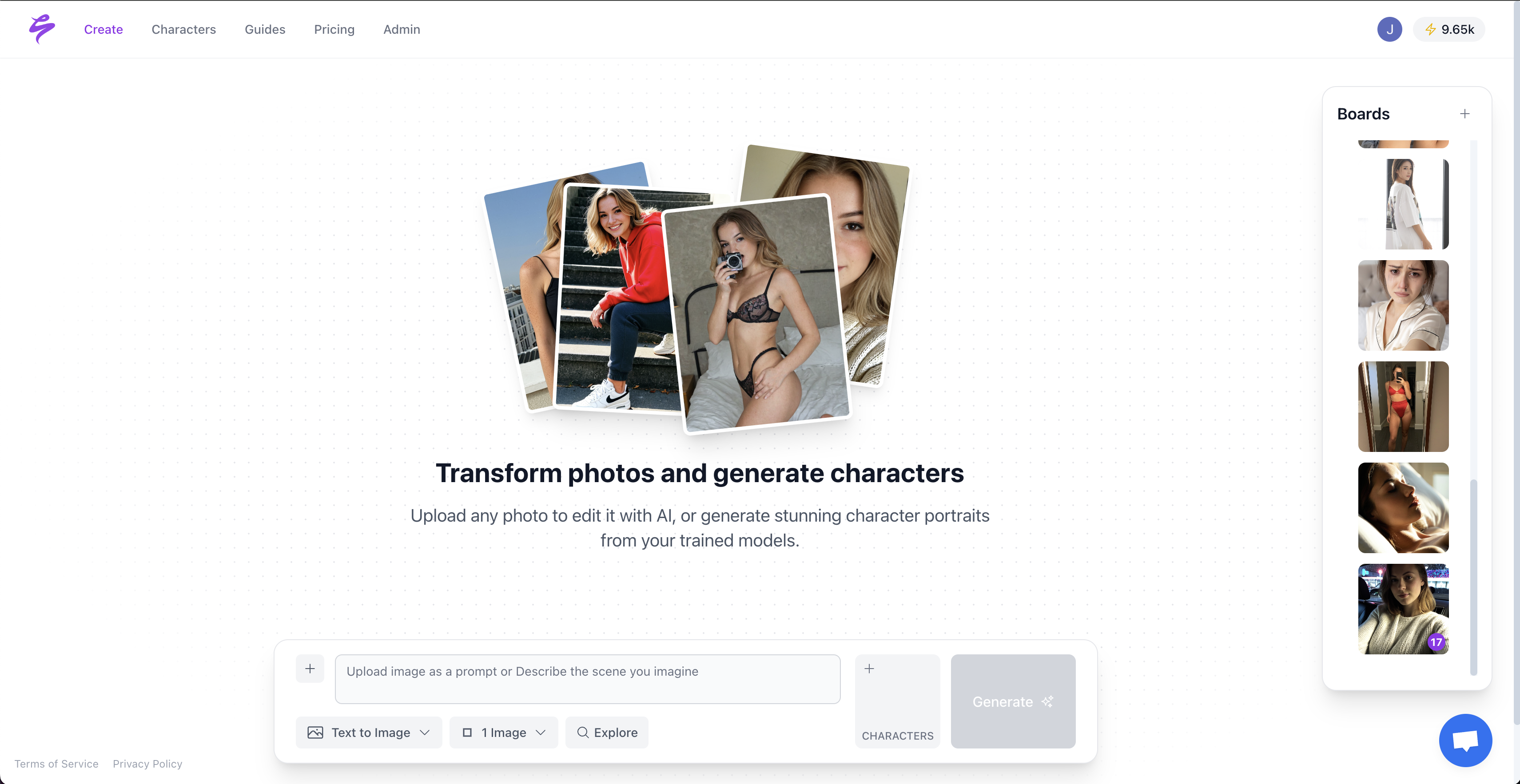
- Upgrading to Sozee.ai unlocks unlimited hyper-realistic videos from just 3 photos so creators can scale content and revenue.
What You Need Before Using Firefly Image to Video
You need a free Adobe Firefly account at firefly.adobe.com, a generated Firefly image or uploaded photo, and basic prompt-writing skills. Motion-enhanced videos usually receive about twice as many views as static posts, so this 10–15 minute Firefly workflow helps casual creators. Serious creators who monetize content at scale benefit more from professional tools. Get started with Sozee.ai to generate unlimited videos from minimal inputs.
Step-by-Step: Convert Adobe Firefly Images to Realistic Videos (2026)
Adobe Firefly’s image-to-video conversion follows these steps for reliable results.
1. Open the Firefly Image to Video Beta
Go to the Adobe Firefly homepage and select “Image to video” to open the Generate video page. Upload your image from your device or Adobe cloud storage as the first keyframe. Choose a resolution of 540p, 720p, or 1080p at the default 24fps.
2. Write Motion Prompts for Natural Movement
Add clear text prompts that describe how the subject should move. Effective Adobe Firefly image to video free prompts include “subtle head turn with realistic lighting,” “slow zoom in on face maintaining natural skin texture,” “gentle camera pan left with cinematic depth,” “soft smile emerging with golden hour lighting,” or “natural eye movement with professional portrait quality.”
3. Set Camera Controls for Extra Depth
Use camera motion options when you only add the first frame. Choose Zoom in to move the camera closer, Zoom out to move it away, Move left to rotate horizontally left, Move right to rotate horizontally right, or adjust Tilt for vertical shifts. Adding an end frame disables motion options, so plan your keyframes before you animate.
4. Generate 5-Second Clips at 1080p
Click “Generate” to create your 1080p video clip. The Firefly Video model defaults to 24 FPS and a 5-second duration. Use the “enhance prompt” feature to boost realism, refine motion, and reduce uncanny artifacts.
5. Preview, Download, and Reuse Clips
Hover over generated videos to preview, download, rate, or add sound effects. Firefly automatically saves videos to the Generation History tab on the Files page, so you can revisit, reuse, or edit them later.
Prompt Examples for Hyper-Realistic Firefly Motion
Prompts that highlight lighting, motion, and detail create more realistic Firefly videos. Specify lighting conditions and detail levels such as “realistic” or “ultrarealistic” when you turn pictures into AI videos.
| Prompt # | Example Prompt |
|---|---|
| 1 | Subtle smile emerging, cinematic 35mm lens, soft golden hour lighting |
| 2 | Natural eye blink, professional portrait lighting, hyper-realistic skin |
| 3 | Gentle head turn left, studio lighting, natural skin texture |
| 4 | Slow zoom in on face, warm natural lighting, realistic depth |
| 5 | Camera pan right, cinematic bokeh, natural facial expression |
| 6 | Soft hair movement, natural wind effect, realistic motion blur |
| 7 | Eyes looking up slowly, dramatic lighting, natural skin tones |
| 8 | Slight shoulder movement, professional photography style, realistic shadows |
| 9 | Natural breathing motion, soft studio lighting, hyper-realistic details |
| 10 | Gentle smile fade, cinematic color grading, natural skin texture |
| 11 | Camera tilt adjustment, golden hour warmth, realistic facial features |
| 12 | Slow motion blink, professional portrait setup, natural lighting |
| 13 | Subtle lip movement, cinematic depth of field, realistic skin |
| 14 | Natural head nod, warm natural lighting, hyper-realistic quality |
| 15 | Gentle camera push in, professional lighting setup, natural motion |
Strong prompts often include “cinematic camera” and “slow-motion” modifiers for smoother, more polished clips. Define tone, style, and intent clearly so your videos stay consistent across multiple generations.
Common Adobe Firefly Video Limits and Workarounds
Adobe Firefly video beta restricts clips to a 5-second maximum and often places users in queues, which slows production. Content Credentials errors block certain images, so resave those files as JPG or PNG to bypass the issue. Use only one browser tab for generation to avoid “Can’t Load” errors, and keep prompts under 1,800 characters. Loop short clips in CapCut for longer edits, or move to professional tools for unlimited realistic video generation.
Why Sozee.ai Outperforms Firefly for Serious Creators
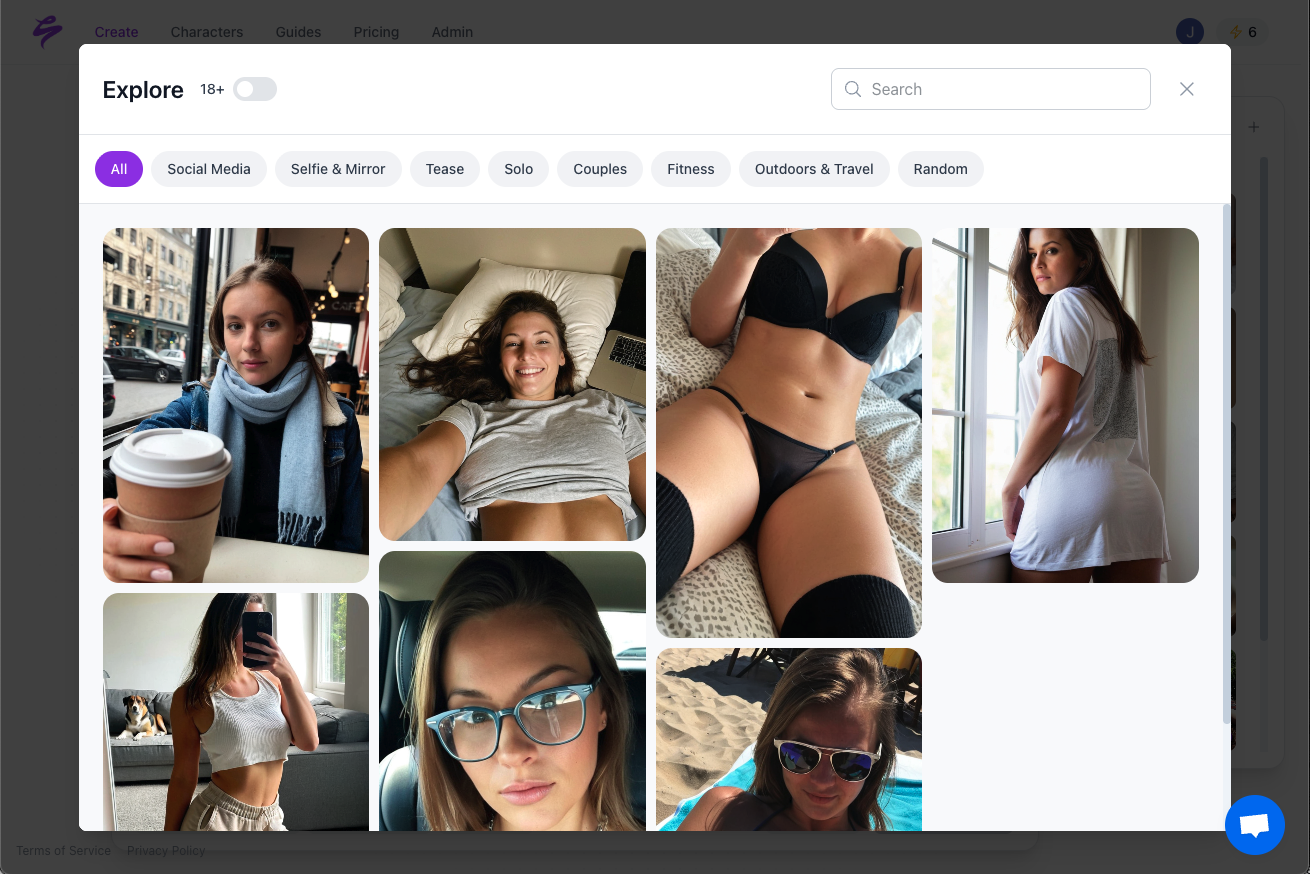
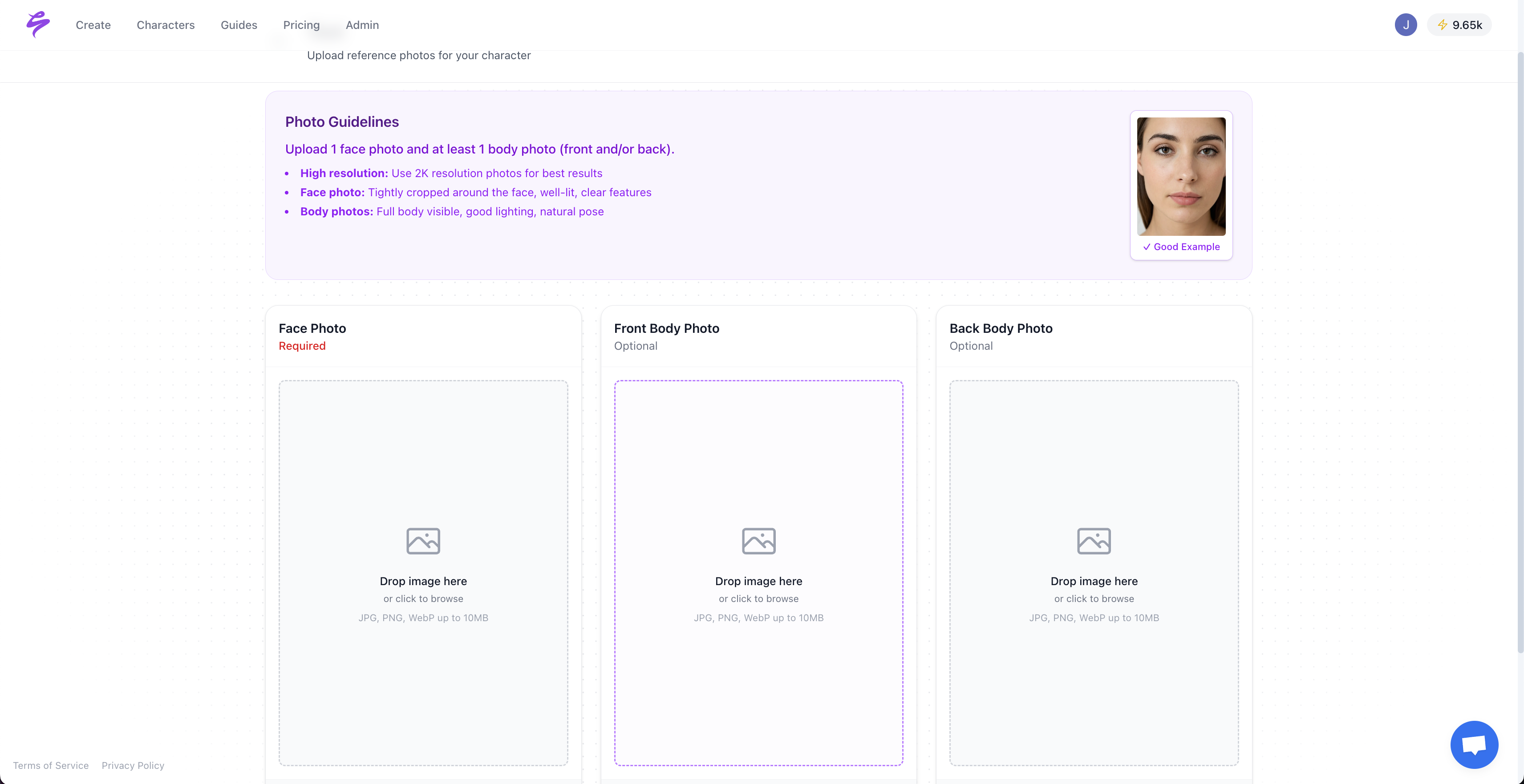
Creators who monetize content need unlimited, hyper-realistic videos instead of short experimental clips. Sozee.ai generates photos and videos that look indistinguishable from real shoots using just 3 uploaded photos, which removes Firefly’s 5-second limit and queue delays. The platform supports private likeness recreation, SFW and NSFW content pipelines for OnlyFans and TikTok, and agency-ready approval workflows.
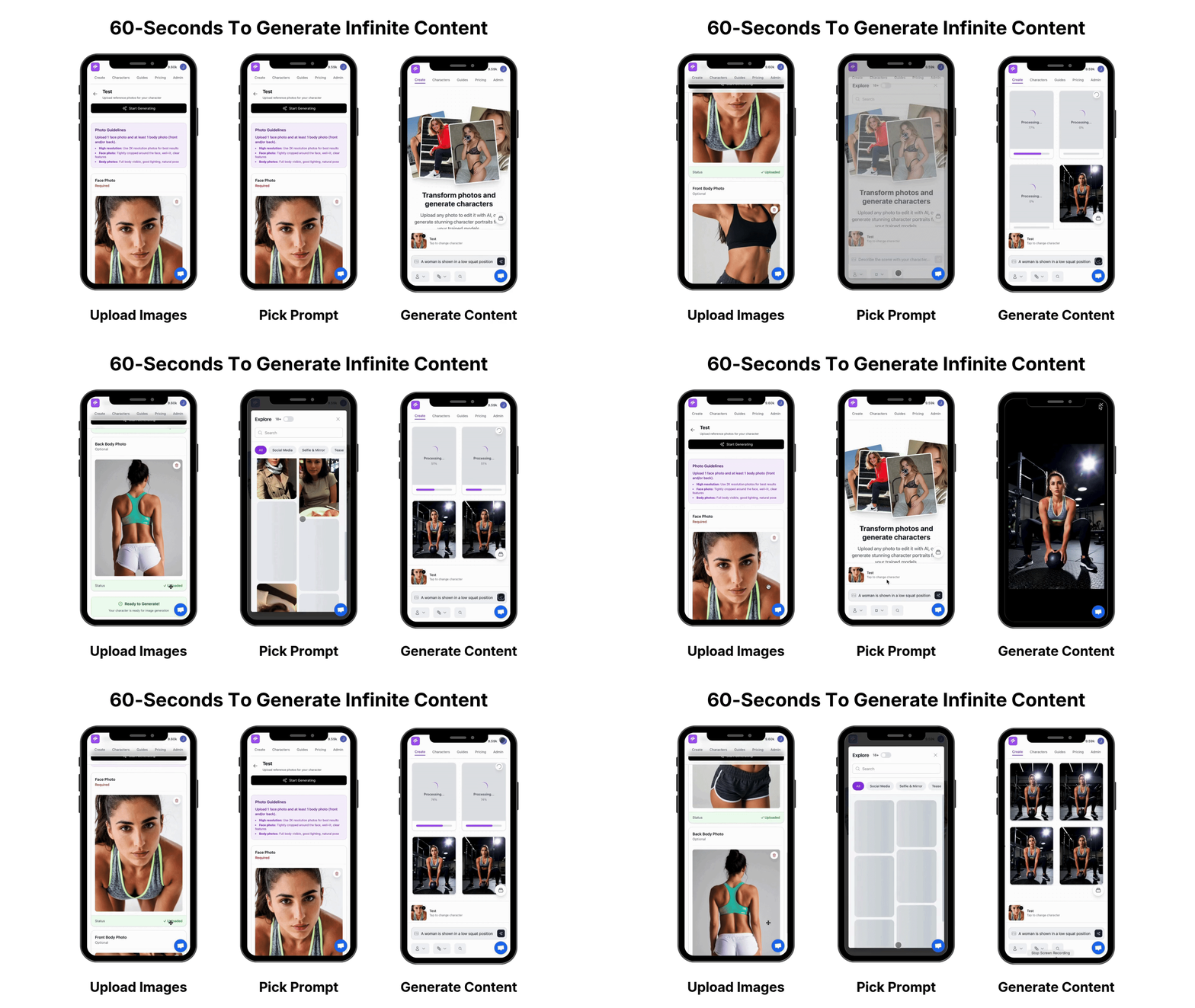
Sozee’s creator-focused workflow follows a simple path: Upload 3 photos, generate unlimited content, refine with AI-assisted tools, then export tailored packs for each platform. This system lets creators produce a month of content in a single afternoon without burnout, technical caps, or studio costs. Unlike Firefly’s basic beta, Sozee delivers consistent brand appearance, unlimited video length, and hyper-realistic quality that fans treat as real footage.
Get started, start creating now, go viral today with Sozee’s unlimited video generation built for creator monetization.
Monetization Tactics and Performance Benchmarks
Turning static images into videos usually doubles posting frequency and lifts engagement by 30–50% across major social platforms. Export vertical videos for TikTok and Instagram, horizontal formats for YouTube, and curated packs for OnlyFans PPV content. The most effective image to video AI for creators focuses on monetization workflows instead of general-purpose experimentation.
Advanced Creator Workflows and Next Steps
Professional creators gain extra leverage from Sozee’s style bundles, which lock in a consistent brand look across every clip. A/B testing tools help creators respond to fan requests and refine what sells. Free image to video AI options such as Firefly work well for testing ideas, but scaling a paid audience requires unlimited generation and hyper-realistic output that keeps viewers engaged without exposing AI usage.
FAQ
Can Adobe Firefly make videos from images?
Yes, Adobe Firefly’s image-to-video beta converts static images into 5-second video clips using text prompts and camera controls. Upload images as keyframes, add motion prompts, adjust camera settings, and generate 1080p videos at 24fps. The 5-second cap and queue restrictions limit its usefulness for creators who need steady content output. Sozee.ai supports unlimited video generation from a few photos for professional creator workflows.
Is Firefly image to video free?
Adobe Firefly offers free image-to-video generation with credit limits and a 5-second maximum duration. Subscribers receive unlimited generations up to 2K resolution, although queues and technical limits still apply. Free users face strong constraints when they try to scale content. Sozee.ai removes these barriers with unlimited, hyper-realistic video generation designed for creator monetization without duration caps or queue delays.
What is the best image to video AI for creators?
Sozee.ai currently stands out as the best image to video AI for creators who monetize content on OnlyFans, TikTok, and Instagram. Unlike general-purpose tools, Sozee generates unlimited hyper-realistic videos from 3 photos with private likeness recreation, SFW and NSFW pipelines, and agency-ready workflows. The platform removes content bottlenecks while preserving realistic quality that keeps audiences engaged and loyal.
What are Firefly image to video limitations?
Adobe Firefly’s image-to-video beta limits clips to 5 seconds, requires queuing during busy periods, and sometimes creates uncanny motion artifacts. Content Credentials errors block some images, and generation works reliably only with a single browser tab. Human and animal forms may distort during motion, and unwanted objects can appear in outputs. Sozee.ai avoids these issues with unlimited duration, private generation, and strict quality control for hyper-realistic results.
How to turn pictures into AI videos?
Turning pictures into AI videos starts with Adobe Firefly’s free image-to-video tool for simple 5-second clips, while professional creators move to platforms with no caps. Upload images to Firefly, write motion prompts, adjust camera controls, and generate short videos for testing. For scaled content production, Sozee.ai converts 3 photos into unlimited hyper-realistic videos with consistent branding, unlimited duration, and monetization-focused workflows that match creator economy demands.
Get started with Sozee.ai today—turn images into revenue-driving videos without limits.