
Key Takeaways
- IPAdapter FaceID uses InsightFace embeddings and LoRAs to reach over 95% face accuracy across SD 1.5, SDXL, and Flux models in ComfyUI and A1111.
- ComfyUI gives you granular node control. Install IPAdapter nodes, load models, generate embeddings, then blend with LoRA at 0.6 to 1.0 weights.
- A1111 setup through ControlNet needs InsightFace preprocessing, ip-adapter_clip models, and balanced weights between 0.7 and 1.0 for stable results.
- Fix distortions by lowering weights to around 0.7, adding FaceDetailer and OpenPose ControlNet, and using photorealistic checkpoints such as Realistic Vision SDXL.
- Skip complex pipelines and sign up for Sozee.ai to create hyper-realistic faces from just 3 photos with no technical setup.
Core Setup: Models, Hardware, and Files
Set up your IPAdapter FaceID workflow on Stable Diffusion 1.5, SDXL, or Flux with either ComfyUI or Automatic1111. Install InsightFace with pip install insightface onnxruntime-gpu and match your CUDA version for GPU acceleration. Download the core models from HuggingFace's IP-Adapter-FaceID repository, including ip-adapter-faceid-plusv2_sdxl_lora for SDXL workflows. Add matching LoRA files such as ip-adapter-faceid-portrait and prepare 3 to 5 high-quality reference photos with clear facial features from multiple angles.
| Version | Models Required | Compatibility |
|---|---|---|
| SD 1.5 | ip-adapter-faceid_sd15.bin | ComfyUI, A1111 |
| SDXL | ip-adapter-faceid-plusv2_sdxl_lora | ComfyUI, A1111 |
| Flux | flux1-redux-dev.safetensors | ComfyUI (custom nodes) |
Plan for 30 to 60 minutes for first-time setup, including model downloads and dependencies. Reserve at least 12 GB VRAM for full-resolution SDXL workflows.
ComfyUI: Step-by-Step IPAdapter FaceID Pipeline
ComfyUI delivers the most reliable IPAdapter FaceID experience because of its flexible node system. Follow these seven steps for consistent face transfer.
1. Install IPAdapter nodes with ComfyUI Manager by opening extensions and searching for “IPAdapter”. Restart ComfyUI after installation so the new nodes load correctly.
2. Download the required models and place them in the ComfyUI/models/ipadapter folder. The SDXL workflow integrates IPAdapter Face ID for enhanced character consistency across multiple poses without visible artifacts.
3. Upload your reference face image and create InsightFace embeddings with the PrepImageForInsightFace node. This preprocessing step improves recognition accuracy and identity match.
4. Wire your graph in this order: Checkpoint Loader, IPAdapter FaceID node with weight between 0.7 and 1.0, text prompt such as “portrait of [subject] in fantasy setting”, then KSampler. Feed both the model and the face embedding into the IPAdapter node.
5. Load the matching LoRA with LoraLoaderModelOnly at roughly 0.6 weight. Use Face ID Plus Version 2 as the primary model for optimal face likeness transfer in ComfyUI pipelines.
6. Add FaceDetailer from the ComfyUI Impact Pack to clean up distortions and sharpen facial details in the final render.
7. Generate your image with KSamplerAdvanced when you want tighter control over steps, CFG scale, and sampling behavior.
For 2026 Flux workflows, install ComfyUI-Flux-IPAdapter custom nodes from the development branch. Active discussions on IPAdapter for Flux started in August 2024, and the community now shares working node graphs for integration.
A1111: ControlNet-Based IPAdapter FaceID Flow
Automatic1111 users can run IPAdapter FaceID through the ControlNet extension with a short setup.
1. Update the ControlNet extension to the latest version and restart the WebUI.
2. Download IPAdapter models and move them into stable-diffusion-webui/models/ControlNet. For SD 1.5, download ip-adapter-plus-face_sd15.bin and rename it to .pth format before placing it in the folder.
3. Turn on InsightFace preprocessing in the ControlNet panel inside WebUI.
4. Upload your reference image to the ControlNet preprocessor and choose ip-adapter_clip_sd15 as the preprocessor type.
5. Set IPAdapter weight to about 0.8 and LoRA weight to around 0.6 for a balanced identity transfer that avoids overfitting.
6. Write your prompt, generate images, and compare outputs to check face consistency across several renders.
| Setting | SD 1.5 | SDXL | Flux |
|---|---|---|---|
| IPAdapter Weight | 0.7-0.9 | 0.8-1.0 | 0.6-0.8 |
| LoRA Weight | 0.5-0.7 | 0.6-0.8 | 0.4-0.6 |
| Preprocessor | ip-adapter_clip_sd15 | ip-adapter_clip_sdxl | flux_ipadapter |
Dialed-In Settings and Fixes for Common Issues
For the highest face accuracy, start with Realistic Vision SDXL or another strong photorealistic checkpoint as your base model. Keep IPAdapter weights between 0.7 and 1.0, where higher values preserve identity more strongly but can limit stylistic variation.
Use these quick fixes for frequent problems. When faces look distorted or plastic, lower the IPAdapter weight to 0.7 and enable FaceDetailer with bbox detection. Users report combining with ControlNet OpenPose and increasing IPAdapter strength to 1.2 can stabilize identity across complex poses.
When LoRA fails to load, confirm file paths and check that the LoRA version matches your base model, such as SD 1.5 or SDXL. For Flux issues, community patches from Civitai updated in February 2026 provide working solutions for Flux.1 dev setups.
For lower memory usage, enable –medvram or –lowvram flags to manage GPU load. Prefer FP16 models when available to cut VRAM needs without major quality loss. Generate single images instead of batches to avoid CUDA out of memory errors.
To reach over 95% identity accuracy, combine IPAdapter FaceID with OpenPose ControlNet for pose control. Use several reference images that cover different angles and lighting. Workflows combining IPAdapterApplyFaceID with FaceDetailer and UltimateSDUpscale show consistent faces across more than 100 generations.
Sozee.ai: Fast Likeness for Working Creators
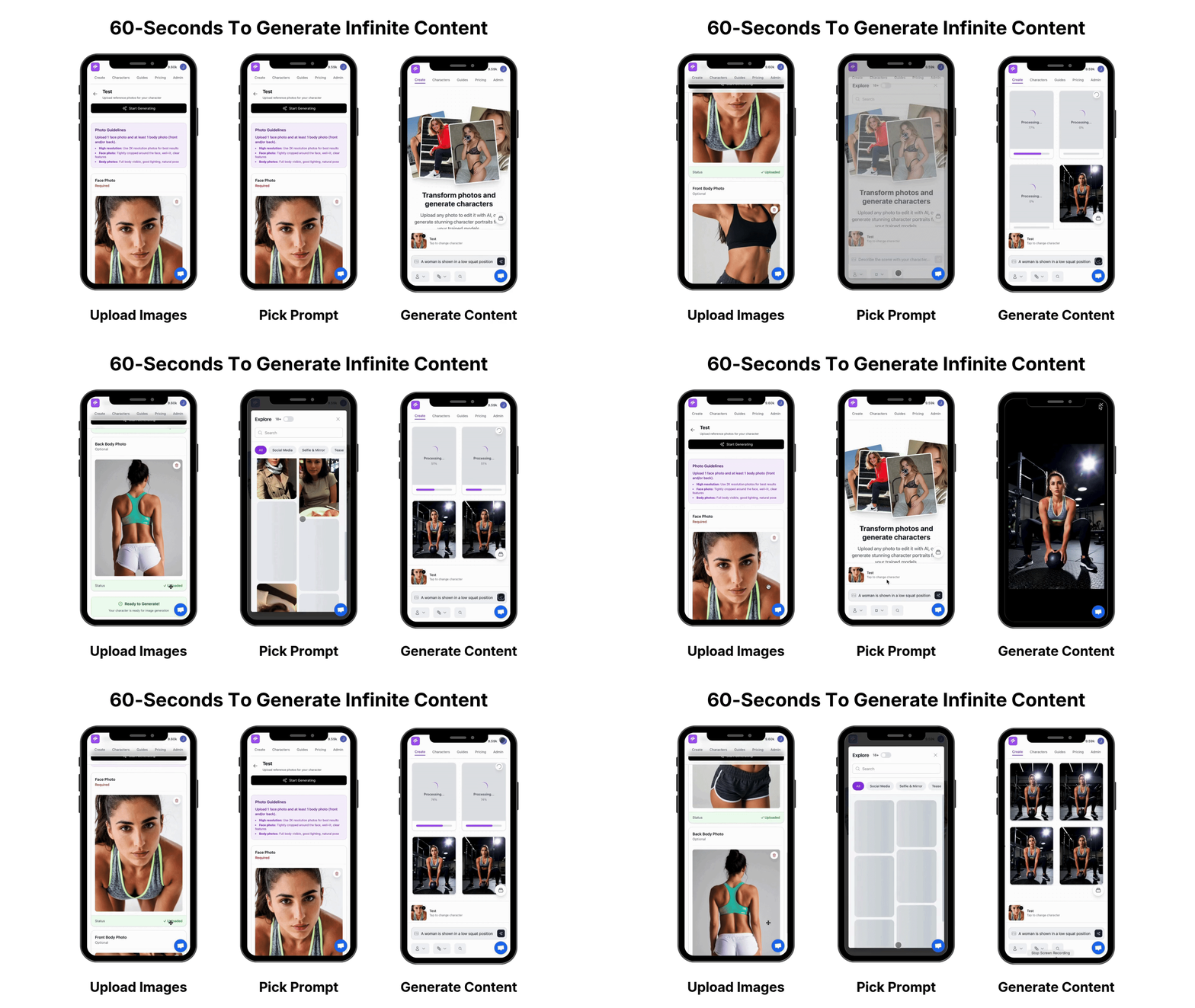
Sozee.ai gives creators hyper-realistic likeness reconstruction from just three photos with no training time. IPAdapter FaceID demands technical setup, model juggling, and frequent debugging, while Sozee focuses on instant, production-ready results for monetized content.
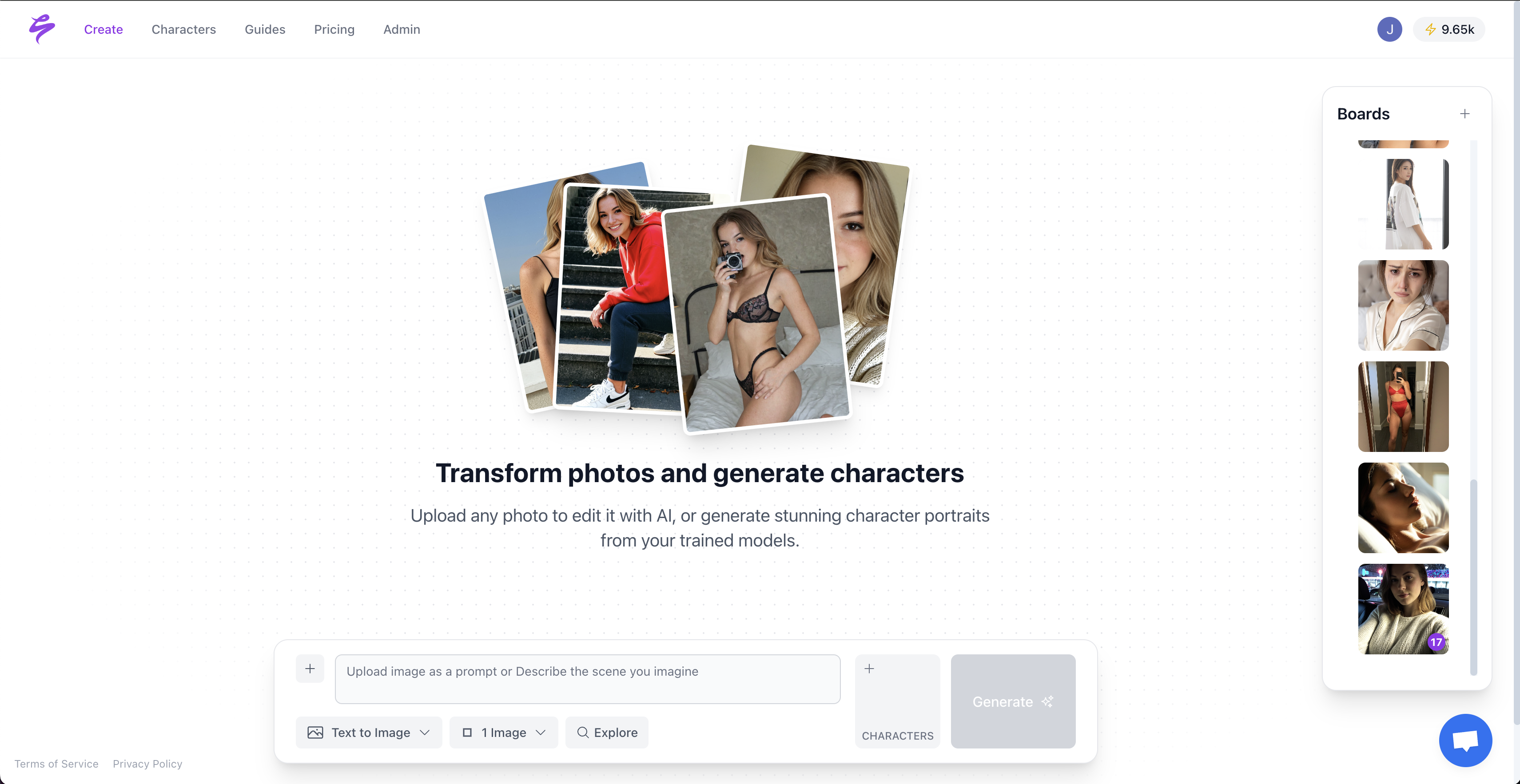
| Feature | IPAdapter FaceID | Sozee.ai |
|---|---|---|
| Setup Time | 30-60 minutes | 0 minutes |
| Technical Knowledge | ComfyUI/A1111 required | None required |
| Content Scale | Manual generation | Infinite automated |
| Privacy | Shared models | Private reconstruction |
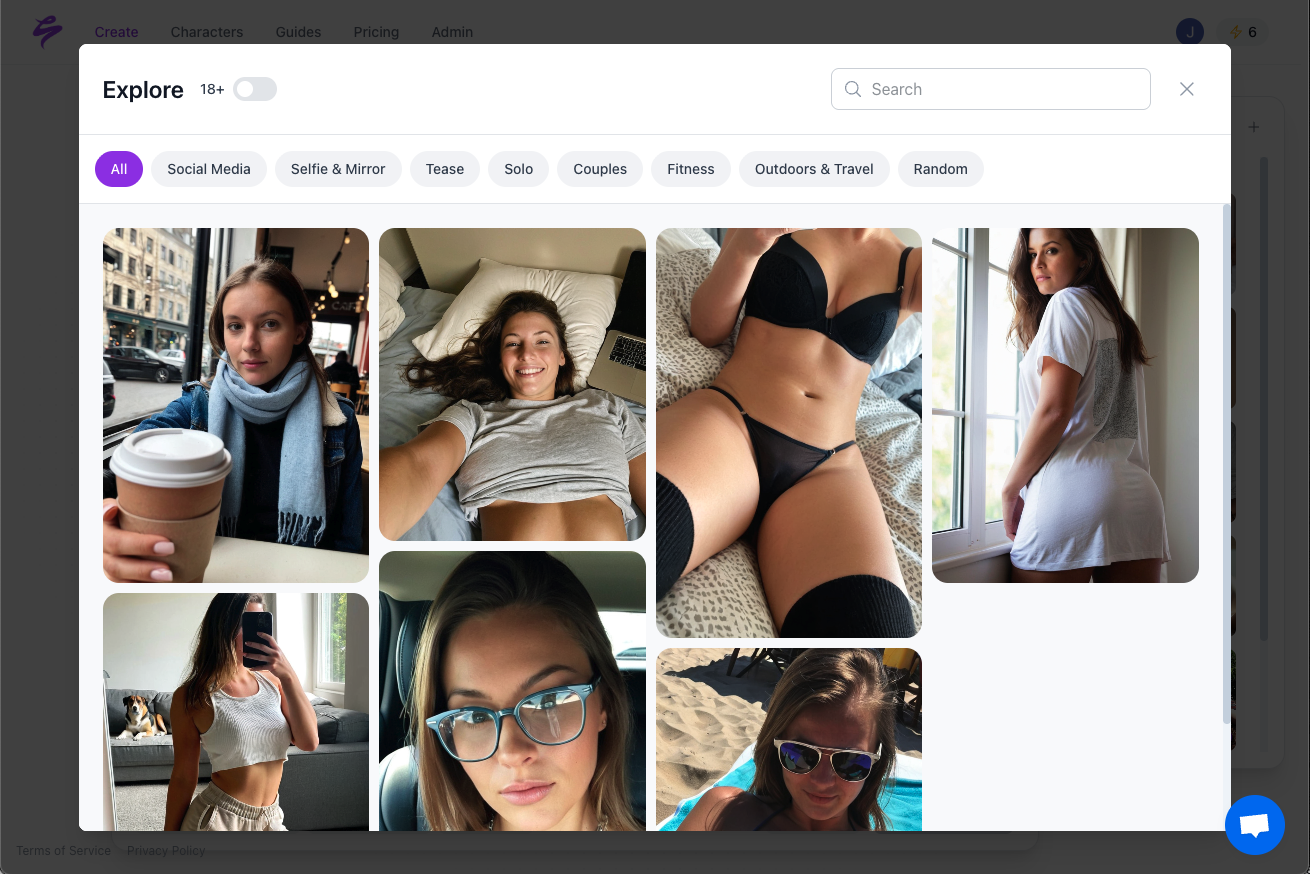
Sozee removes the technical hurdles that slow down content production. You avoid model downloads, weight tuning, and fixing warped faces. Upload your photos and start creating consistent faces today with outputs tuned for OnlyFans, TikTok, Instagram, and other creator monetization platforms.
Advanced IPAdapter Techniques and Growth Paths
Mastering IPAdapter FaceID workflows helps you build reliable characters that support long-term content revenue. Explore advanced tools such as attention masking, stacked ControlNet setups, and custom LoRA training for niche looks or branded personas. When you want to scale beyond manual pipelines, go viral today with Sozee.ai's instant likeness technology.
Frequently Asked Questions
Where do I put IPAdapter models in ComfyUI?
Place IPAdapter models in the ComfyUI/models/ipadapter folder. Install the required nodes through ComfyUI Manager by searching for “IPAdapter” in the custom nodes section. After installation, restart ComfyUI so the new nodes load correctly. Add InsightFace dependencies to requirements.txt and run pip install to complete the setup.
How does IPAdapter FaceID work technically?
IPAdapter FaceID combines InsightFace embeddings with LoRA, or Low-Rank Adaptation, to move facial features from reference images into generated images. The system extracts facial embeddings with InsightFace's recognition model, then injects these features through the IPAdapter conditioning mechanism during diffusion. This process keeps identity stable while still allowing creative prompts and style changes.
What's the best IPAdapter FaceID model for SDXL?
Use ip-adapter-faceid-plusv2_sdxl_lora as your main SDXL model. This Plus Version 2 release offers strong face likeness transfer and better stability. Pair it with the matching LoRA file at 0.6 to 0.8 weight for reliable results. For even tighter identity control, combine Face ID Plus V2 with the Plus Face model and feed both into the IPAdapter node.
Why are my generated faces distorted or plastic-looking?
Distorted or plastic faces usually come from excessive IPAdapter weight or weak face detailing. Reduce the IPAdapter weight to 0.7, enable FaceDetailer with bbox detection, and add OpenPose ControlNet for pose alignment. Use negative prompts such as “blurry, deformed, plastic” and lower denoising strength to around 0.6. Check that your reference photos show clear facial features and good lighting.
Does IPAdapter FaceID work with Flux models?
Flux support currently depends on custom nodes such as ComfyUI-Flux-IPAdapter from the development branch. Standard IPAdapter FaceID models do not directly support the Flux architecture. Use flux1-redux-dev.safetensors with community workflows and patches for stable results. For A1111, Flux IPAdapter integration still relies on custom scripts and extensions that remain under active development.