
Key Takeaways
- Adobe Firefly’s Image to Video feature converts static images into 5-10 second clips using motion prompts, boosting content output 10x for creators.
- Follow this 6-step process: access Firefly, upload an image, enter prompts like “gentle camera zoom,” adjust settings, generate, and download MP4s.
- Work around limitations like short durations, credit costs, and no NSFW support by troubleshooting uploads and using hybrid editing workflows.
- Scale beyond Firefly with Sozee.ai to create unlimited hyper-realistic videos from just three photos, ideal for consistent brand content.
- Sign up with Sozee today to remove content bottlenecks and generate unlimited videos tailored for TikTok, OnlyFans, and agencies.
What You Need Before You Start with Firefly Video
Access Adobe Firefly through any Adobe account, including free Creative Cloud subscriptions. Adobe’s 2026 unlimited generation promo runs through March 16, and it provides unlimited video generations up to 2K resolution for new subscribers.
Prepare your source image as a PNG or JPG file under 10MB and 3840×3840 pixels maximum. High-resolution Firefly images deliver the strongest video quality. Access the tool at firefly.adobe.com/web/app or through Photoshop’s integrated sharing feature.
Step-by-Step: Turn Adobe Firefly Images into AI Videos in 2026
Step 1: Access Firefly Video
Go to Adobe Firefly and select “Image to video” from the main interface. You can also open your image in Photoshop 2026 and click the share icon, then choose “Generate Video in Firefly” for direct integration.
Step 2: Upload Your Image
Under the Frame option, upload your Firefly image from device storage or Adobe cloud. This image becomes your first keyframe. You can optionally upload a second image for the end keyframe to guide how the video finishes. Hover over the thumbnail to preview, then adjust the crop using the corner handles.
Step 3: Enter Motion Prompts
Describe the motion or camera movement you want in the text prompt field. Use clear, specific prompts such as: • “Gentle camera zoom in, cinematic lighting” • “Clouds moving realistically, soft wind effect” • “Camera pan left slowly, maintaining focus” • “Subtle breathing motion, realistic skin movement” • “Product spinning clockwise, studio lighting”
Step 4: Adjust Generation Settings
Choose your video duration between 5 and 10 seconds, then set motion strength, aspect ratio, and resolution. Use 16:9 for landscape and 9:16 for vertical formats. Standard credit costs range from 10 to 75 credits per second depending on resolution, with 540p to 1080p options available and 2K for unlimited subscribers.
Step 5: Generate and Review
Click Generate and wait between 10 seconds and 1 minute for processing. Preview the generated video and rate the output to help refine future results. You can also add sound effects using text prompts or voice recordings. The system saves your results automatically in your Generation History.
Step 6: Download and Extend
Export the clip as an MP4 for immediate use on social platforms or websites. You can also import the file into CapCut, iMovie, or other editors to sequence multiple clips into longer videos. Save your most successful prompts and settings so you can repeat consistent results across future generations.
Adobe Firefly Image-to-Video Capabilities Explained
Adobe Firefly includes native image-to-video tools through its Video Model 5, which launched in beta during 2025. The workflow uses a simple process of uploading an image, entering motion prompts, and generating 5-10 second clips at up to 1080p resolution. Integration with Photoshop and Firefly Boards keeps the workflow familiar and fast for existing Adobe users.
Where Adobe Firefly Image to Video Falls Short
Current limitations include maximum 5-10 second clips, credit consumption of 50+ per video, and file size restrictions under 20GB. The system does not support NSFW content, and animated GIF inputs lose their animation. Consistency can vary between generations, which affects creator workflows.
Beta users also report occasional upload failures and vertical format bugs that require a browser refresh. These issues slow down production when you need reliable, repeatable content output.
Quick Fixes When Firefly Will Not Upload Your Image
Common upload issues include inactive upload buttons even when settings look correct. First, confirm your files stay under 10MB and 3840×3840 pixels. Then clear your browser cache, try incognito mode, disable any VPN connections, and re-save images in different formats.
Content Credentials errors often require exporting images as new files or switching between JPG and PNG formats. These quick changes usually restore upload functionality without deeper technical fixes.
Why Sozee.ai Becomes Your Next Step After Firefly
Firefly’s limits create bottlenecks that slow creator growth and agency workflows. Short clips, credit costs, and content restrictions block the scale you need for consistent monetization across OnlyFans, TikTok, and other platforms.
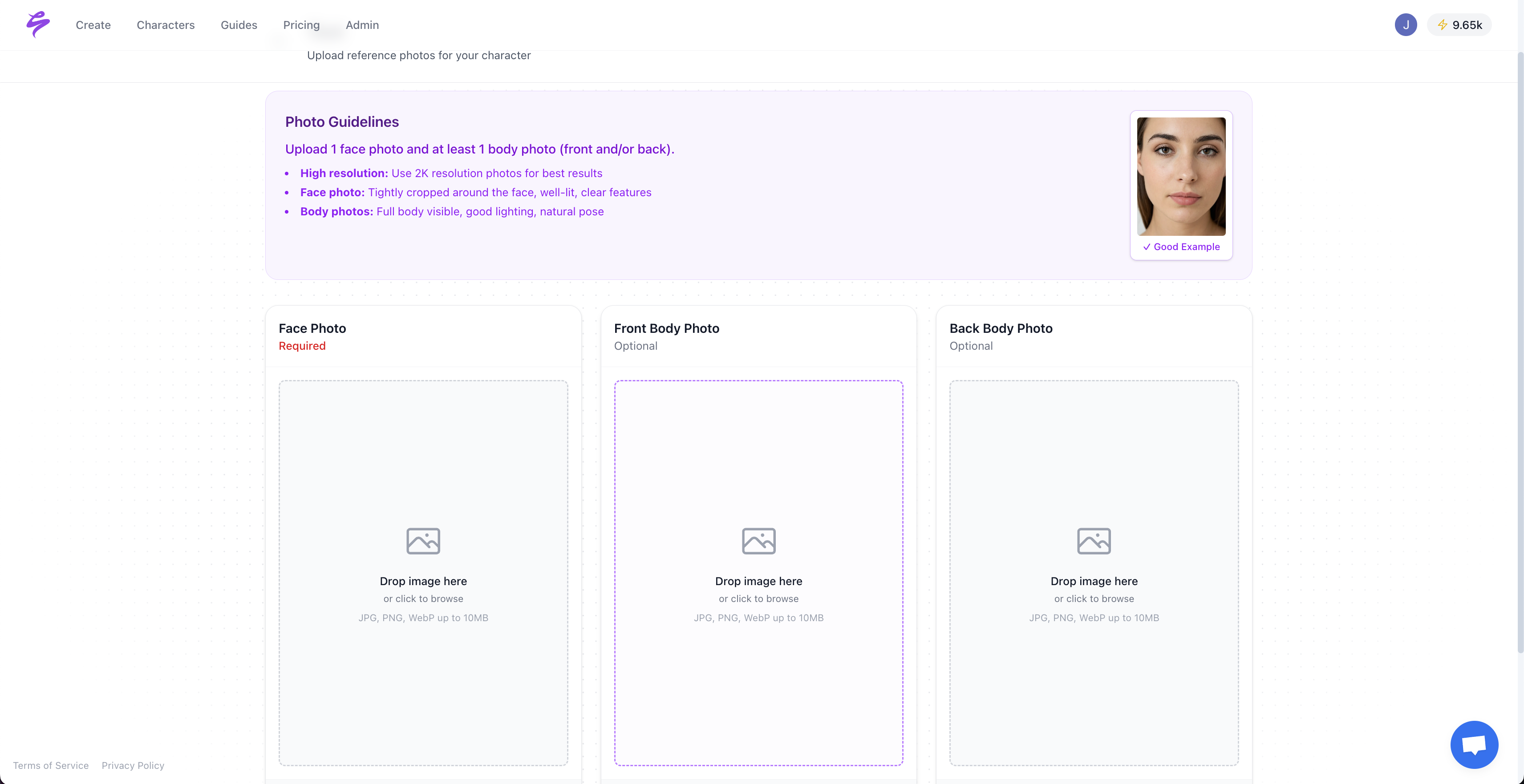
Sozee.ai removes these constraints completely. You upload just three photos and then generate unlimited hyper-realistic videos and images that keep your likeness consistent across every asset. Sozee builds complete content sets designed for creator monetization pipelines.
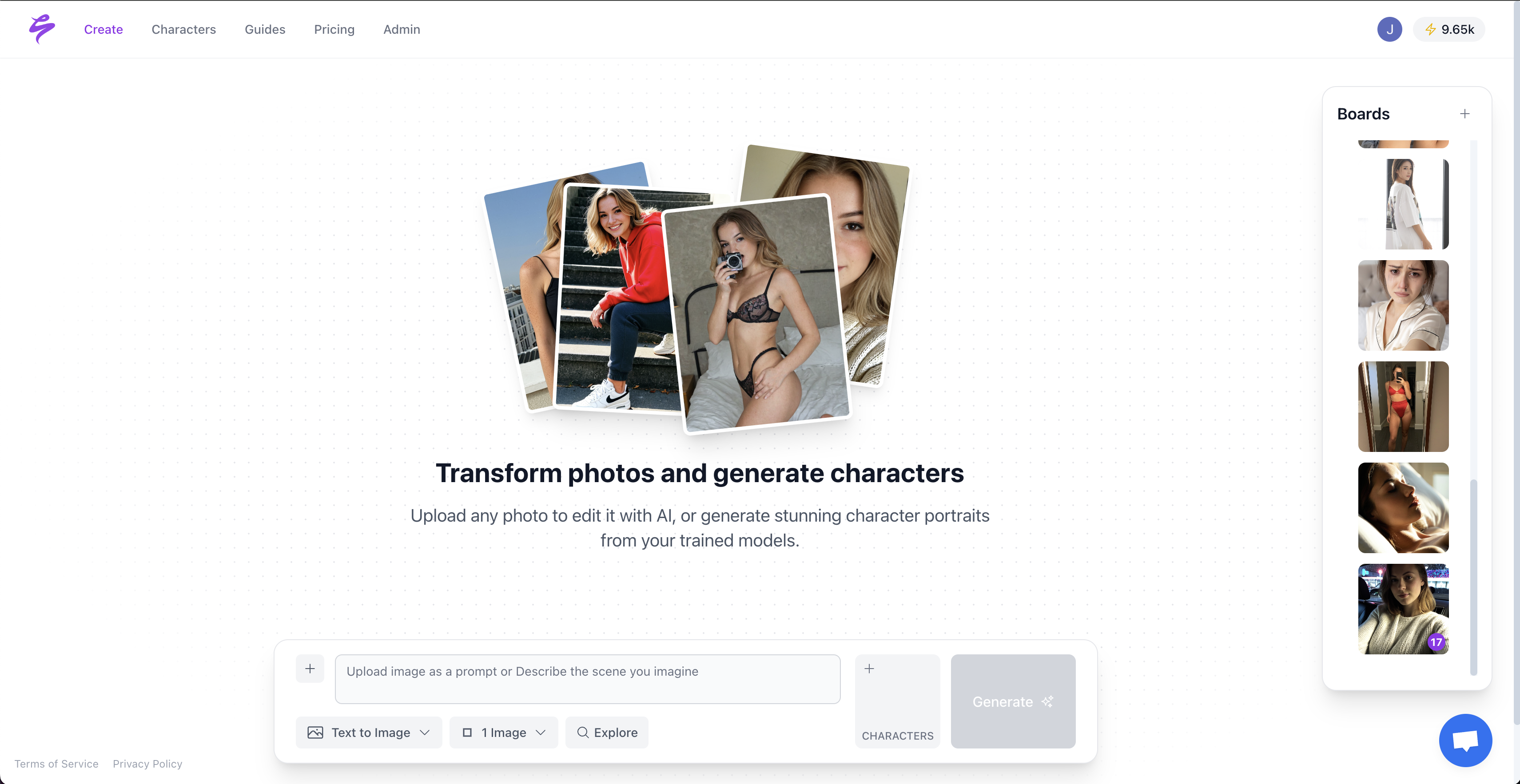
The workflow reconstructs your likeness for ongoing content generation. Upload your likeness, generate unlimited variations, refine for each platform, then export content packs for immediate posting. Sozee supports NSFW content, protects privacy with isolated models, and produces content up to 5x faster than traditional shoots.
Creators using Sozee report doubled engagement rates and higher posting frequency. Agencies use Sozee to build month-long content calendars in a single afternoon. Sozee removes credit limits, duration caps, and content policy barriers that block traditional AI tools.
Start creating now with Sozee’s free trial and experience unlimited video generation that grows with your creator business instead of holding it back.
Pro Tips for Firefly and Sozee, Plus Next Steps
Use cinematic and realistic style descriptors in your Firefly prompts to achieve professional-looking results. Build hybrid workflows by generating base content in Firefly, then refining and scaling that content through Sozee for consistency across platforms.
A/B test different motion prompts and track which versions perform best. Save your winning prompt combinations as reusable templates so you can produce content faster without sacrificing quality.
Frequently Asked Questions
Is Adobe Firefly image to video free?
Adobe Firefly offers a free tier with limited generations. The unlimited promotion running through March 16, 2026 provides unlimited video generations up to 2K resolution for Pro, Premium, and other paid subscribers. Standard users consume credits per generation, typically 50+ credits for a 5-10 second video.
How does Firefly compare to Runway for image to video?
Firefly integrates natively with Adobe’s ecosystem and offers competitive credit pricing. Runway provides longer video durations but often delivers less consistency for creator-focused content. Sozee.ai surpasses both platforms for likeness accuracy, unlimited generation, and creator monetization workflows, including NSFW support.
How can I make longer videos from Firefly clips?
Sequence multiple Firefly clips in video editors like CapCut, iMovie, or Adobe Premiere Pro. Plan your shots as individual scenes, then stitch them together for longer narratives. Sozee.ai enables scalable video content that already aligns with creator workflows, so you can avoid heavy sequencing work when you need volume.
What are the best prompts for Firefly video generation?
Strong prompts combine specific motion descriptions with clear style qualifiers. Examples include “zoom in slowly, cinematic lighting,” “gentle camera pan right, maintaining focus,” or “subtle wind effect, realistic hair movement.” Test variations of each idea and save your most reliable prompts for consistent results.
Can Sozee handle NSFW videos from Firefly images?
Sozee.ai supports unlimited NSFW content generation with complete privacy protection. Upload as few as three photos of your likeness and generate adult content variations without platform restrictions, credit limits, or content policy barriers that limit traditional AI tools.
Conclusion: Use Firefly for Fast Wins and Sozee for Scale
Master Adobe Firefly’s image-to-video conversion for quick content wins, then scale your output with Sozee.ai’s unlimited generation capabilities. Turn static images into engaging videos that drive traffic, sales, and fan engagement across every platform.
The content crisis ends when creators control unlimited, consistent video production. Go viral today with tools that multiply your creative output without multiplying your workload.