
Last updated: June 29, 2026
Key Takeaways for Flux Hyperrealism
- Flux Dev needs guidance values around 3–4 and photographic prompts to avoid plastic skin and reach hyperrealistic detail.
- One realism LoRA at 0.7–0.85 strength with IP-Adapter FaceID at weight 0.8 keeps identity consistent across 30 or more images.
- Upscaling with RealESRGAN plus a ControlNet Tile detail pass restores pore structure that often softens during generation.
- Lower guidance, use high-resolution eye crops, and fix seeds to prevent over-cooked skin and eye-color drift.
- For creators who want to skip technical setup, Sozee handles Flux-style hyperrealism for you from upload to export →
Prerequisites for Reliable Flux Portraits
Start by confirming access to Flux 1.1 Dev through Replicate, ComfyUI, or Fal. Flux Schnell works well for rapid drafts, but Flux Dev is the right base for portrait realism because its guidance system supports strong prompt fidelity at low step counts. Gather three to five reference photos of the subject: one frontal neutral, one three-quarter angle, and one in natural outdoor or window light. This workflow assumes basic comfort with node editors or API calls.
Define success before you generate anything. Aim for 30 or more images that share the same identity with less than 5 percent drift in eye color, skin tone, and facial structure. This threshold matches real creator workloads, where daily posting and PPV drops often demand batches of 20–50 images in a single session. Any workflow that cannot hold identity at that volume forces manual fixes or reshoots, which removes the time savings that AI should provide.
Step-by-Step Flux Hyperrealism Workflow
Step 1: Dial In Guidance and Shift Values
Flux Dev and Flux Schnell are distilled models where guidance behavior lives inside the network, so traditional CFG scale stays at 1. A separate guidance-scale parameter of 3–4 controls Flux Dev, while Flux Schnell does not use classifier-free guidance and requires guidance_scale to be set to 0. Setting CFG to 7 on Flux Dev blows out images with artifacts because its distilled guidance conflicts with older Stable Diffusion CFG habits. A Flux Dev guidance value between 3 and 4 usually delivers strong prompt following with natural skin.
Set shift between 0.8 and 1.0 to keep mid-frequency skin detail without harsh edges. On Replicate, pass guidance_scale: 3.5 and num_inference_steps: 28. On ComfyUI, set the FluxGuidance node to 3.5 and KSampler steps to 28 with the Euler scheduler. On Fal, use guidance_scale=3.5 in the API payload. FLUX.1 Schnell is designed to generate high-quality images in only 1 to 4 steps, so when speed matters more than fine detail, switch to Schnell with guidance_scale=0.0 and num_inference_steps=4 for draft passes.
Step 2: Write Photographic Prompts That Preserve Skin Texture
Flux responds best to natural-language descriptions instead of keyword piles. Lead with camera and lens details, then lighting, then subject description, then skin-texture notes. Use this template for a female portrait:
“Photograph of a 28-year-old woman, shot on a Sony A7R V with an 85mm f/1.4 lens, natural window light from camera left, soft shadow fill, visible skin pores, fine facial hair, subtle under-eye texture, no retouching, editorial magazine style, ultra-sharp focus on iris.”
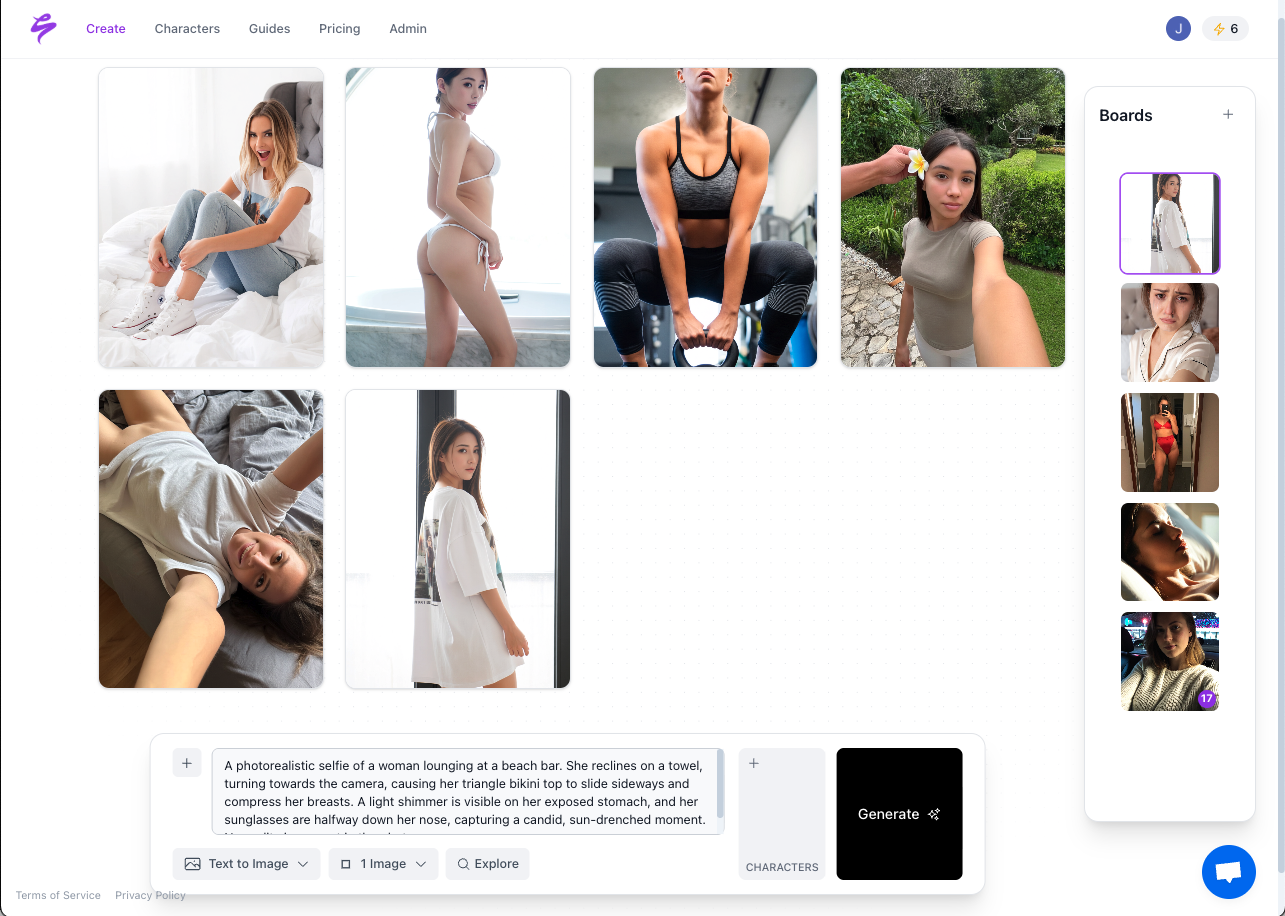
For male portraits, switch the lens to a 50mm f/1.2 and add “beard stubble texture, forehead lines, natural sebum sheen.” Avoid strings like “hyperrealistic ultra photorealistic 8K” because Flux Dev reads dense keyword lists as conflicting signals and often smooths skin instead of sharpening it. Keep negative prompts short: “painting, illustration, CGI, plastic skin, smooth skin, airbrushed” usually covers the main issues.
Step 3: Use a Single Realism LoRA Without Conflicts
Start with one realism LoRA at a time for predictable behavior. Community-tested Flux Realism LoRA builds on CivitAI and Hugging Face focus on pore structure and subsurface scattering. In ComfyUI, load the LoRA through a LoraLoader node placed between the CLIP and the UNet, and set strength between 0.7 and 0.85. Values above 0.9 often add color casts and flatten the iris. On Replicate, pass the LoRA URL in the lora_weights field. On Fal, use the loras array with scale: 0.8. Stacking two realism LoRAs can work at 0.5 strength each, but test carefully for artifacts along the hairline and ears.
Step 4: Lock Face Identity Across Every Batch
IP-Adapter FaceID and Reactor are the main face-lock tools in ComfyUI. IP-Adapter FaceID embeds a facial representation from a reference image directly into the attention layers, and a weight of 0.8 usually keeps identity stable while still allowing lighting changes. Reactor performs a face swap after generation and runs faster, but it can leave edge artifacts around the jaw. For agency pipelines that need SFW-to-NSFW consistency, IP-Adapter FaceID works better because it shapes the image during generation instead of patching it afterward.
On Replicate and Fal, pass the reference image as the image or ip_adapter_image parameter, depending on the endpoint. Combine IP-Adapter FaceID at a weight around 0.8 with a fixed seed to keep identity drift low across large batches.
Step 5: Upscale and Restore Fine Skin Detail
Generate at 1024×1024 or 896×1152 for portrait crops, then upscale 2× with RealESRGAN x4plus or the 4x-UltraSharp model in ComfyUI’s ImageUpscaleWithModel node. After upscaling, run a detail pass with a ControlNet Tile model at 0.4 strength and 12 steps to bring back pore structure that softened during scaling. Finish with an Unsharp Mask at radius 1.2 and amount 0.6 to add clarity without the harsh halo that often appears in AI portraits. Export at JPEG 92 for OnlyFans and Fansly packs, and use PNG for agency approval flows that need lossless review.
Even with this workflow in place, a few recurring issues can still break realism. The next section covers the most common problems and how to correct them quickly.
Common Pitfalls in Flux Portrait Workflows
Over-cooked skin: Guidance values above 4.5 on Flux Dev often create waxy, over-lit skin. Drop guidance to 3.5 and lower LoRA strength in 0.1 steps until natural texture returns.
Hand deformities: Flux Dev handles hands better than older models but still struggles with complex poses. Add “hands at sides, relaxed pose” to the prompt or frame compositions to crop out hands in hero shots.
Inconsistent eye color: Eye color drifts when the reference image is low resolution or the IP-Adapter weight falls below 0.7. Use at least a 512px crop of the eye region as a secondary reference image and feed it into the IP-Adapter face crop input.
Pro Tips for High-Volume Creator Workflows
Batch generation of 20 or more variations in one run works well when you fix the seed for the first image, then increase it by 1 for each following image while keeping all other parameters the same. This pattern creates a cohesive set with natural variation in expression and micro-lighting while holding identity. Save the full parameter set, including guidance value, LoRA path and strength, IP-Adapter weight, seed range, and prompt, as a reusable style bundle. Agencies that manage multiple creators can keep one bundle per creator and swap only the reference image, which cuts setup time for each new shoot to under two minutes.
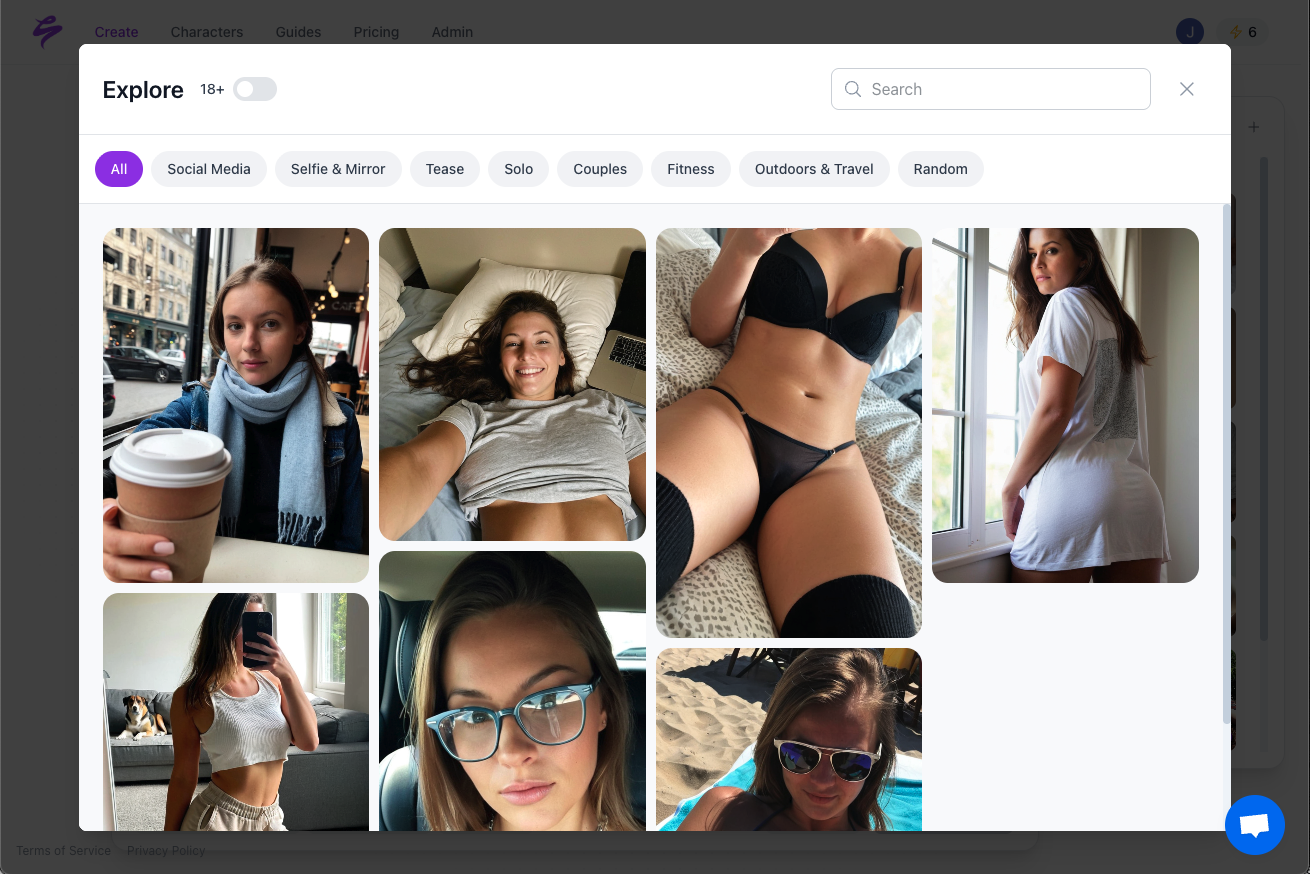
Generate your first 20-image batch in Sozee without touching a single node →
When Manual Flux Tuning Stops Scaling: Shift to Sozee
The five-step workflow above delivers strong results, but it also demands ComfyUI node management, LoRA sourcing, IP-Adapter setup, and upscaling chains. Each new face adds more configuration work and more chances for a dependency update to break the pipeline. Sozee removes that technical layer.
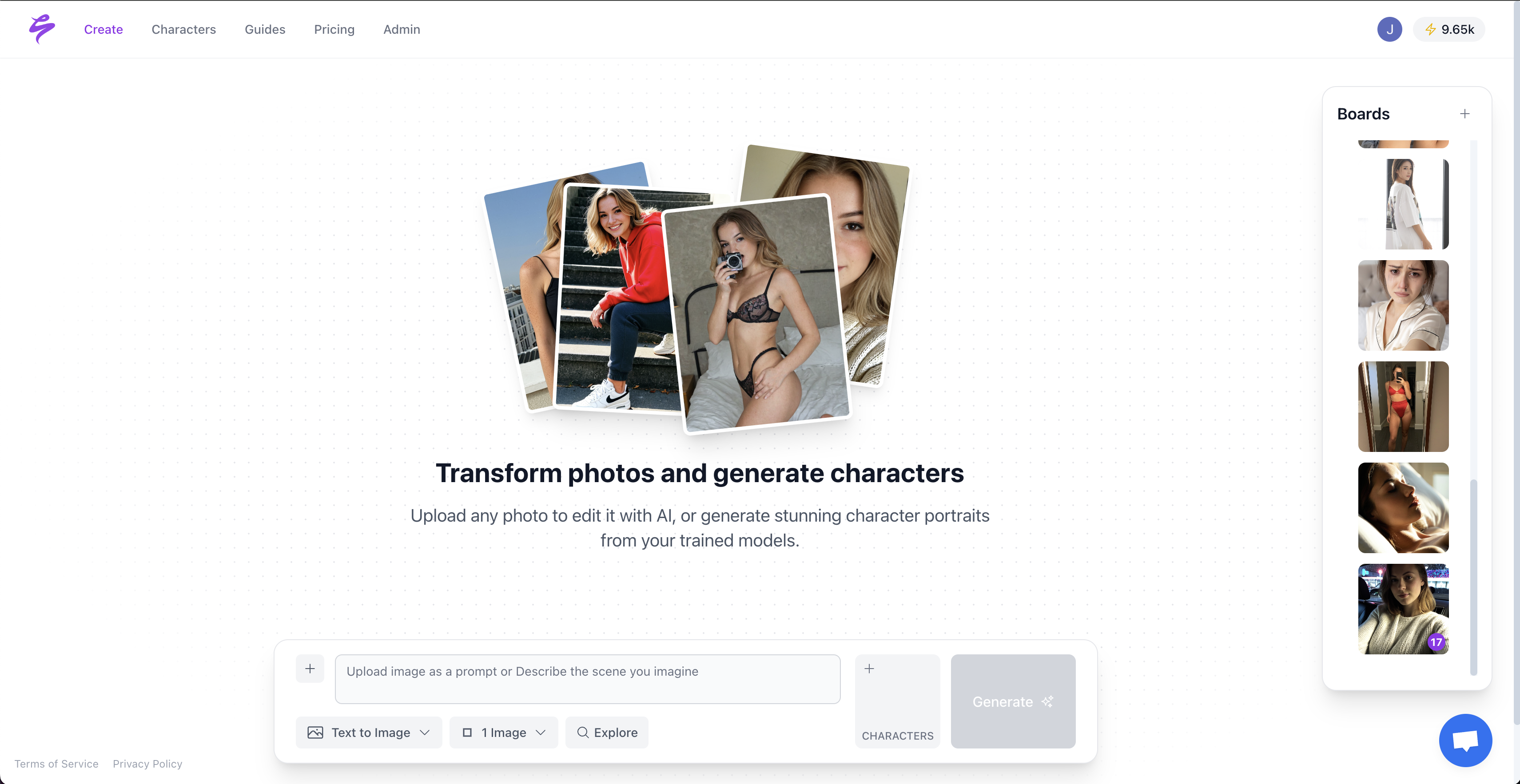
Upload three reference photos and Sozee reconstructs the likeness instantly with no training time and no manual setup. Each creator’s likeness model stays private and isolated, so it never trains other models and never crosses into other accounts. From that model, creators generate unlimited photos and short videos, export directly into OnlyFans, Fansly, FanVue, TikTok, and Instagram packs, and save reusable style bundles that repeat winning looks across weeks of content. Agency teams also gain built-in approval flows and scheduling in the same system. The output matches real shoots closely, with no plastic skin, no uncanny valley, and no separate post-processing queue.

For creators posting daily, running PPV drops, or managing several personas, the manual Flux workflow eventually becomes a ceiling. Sozee provides the next stage after that ceiling by turning likeness generation into a repeatable, non-technical process.
Frequently Asked Questions
What is the correct CFG scale for Flux hyperrealistic portraits?
Flux Dev uses a separate guidance-scale parameter instead of traditional CFG. Set guidance_scale to 3.5 for portrait realism and leave CFG at 1. Values above 4.5 often introduce artifacts and flatten skin texture. Flux Schnell does not use classifier-free guidance and requires guidance_scale to be set to 0. Sozee manages these settings automatically, so you upload three photos and the platform handles guidance values for you.
Which Flux realism LoRA produces the best skin texture?
Community realism LoRAs that focus on pore structure and subsurface scattering, loaded at 0.75–0.85 strength in ComfyUI or via API, usually give the strongest results. Stacking two LoRAs at reduced strength can work but needs artifact checks on edges and hairlines. Sozee’s output pipeline already targets realistic skin, so you avoid LoRA sourcing and configuration entirely.
How do I keep faces consistent across 30 or more Flux generations?
IP-Adapter FaceID at the weight described in Step 4, combined with a fixed seed, maintains strong identity consistency across large batches. Reactor runs faster but can add edge artifacts. For creators who need consistent faces at scale without node work, Sozee’s private likeness model keeps identity stable across unlimited generations from a single three-photo upload.
Can I use this workflow for an OnlyFans or Fansly content pipeline?
Yes. The five-step workflow supports SFW-to-NSFW pipelines when you pair it with suitable LoRAs and IP-Adapter face-lock. Export at JPEG 92 for files that are ready for major creator platforms. Sozee is built for this use case, with direct export packs for OnlyFans, Fansly, and FanVue plus agency approval flows inside the platform.
How is Sozee different from running Flux manually?
Manual Flux requires platform access, LoRA hunting, node configuration, face-lock setup, and post-processing, which all add time for every new face. Sozee replaces that stack with a three-photo upload and instant generation. Likeness models stay private, outputs are ready for monetization, and the workflow centers on creator revenue instead of technical experimentation.
Conclusion: Scale Hyperrealistic Content Without Extra Tech Work
The five-step Flux workflow of tuned guidance values, photographic prompts, realism LoRAs, IP-Adapter face-lock, and detail upscaling can deliver consistent hyperrealistic portraits at production quality. It remains the most dependable manual route to generating many convincing images per session with strong identity consistency. For creators and agencies whose income depends on daily volume, that manual route eventually slows growth. Sozee removes that friction by turning three photos into instant likeness reconstruction, unlimited monetization-grade output, and a workflow that needs no technical setup.
Upload three photos and start generating production-ready content in Sozee →