Last updated: May 24, 2026
Key Takeaways
- A single 45–60 minute weekly batch session using Krea AI can produce a full week of on-brand Instagram posts, TikTok clips, and Reels.
- Training Krea on your brand aesthetic with mood boards, color palettes, and Brand Lock keeps visuals consistent across every generation.
- The Realtime Generator, AI Animator, and 8K upscaler form a repeatable pipeline that moves from prompt to polished, platform-ready assets.
- Exporting at platform-specific specs and scheduling posts in advance keeps output consistent without daily production pressure.
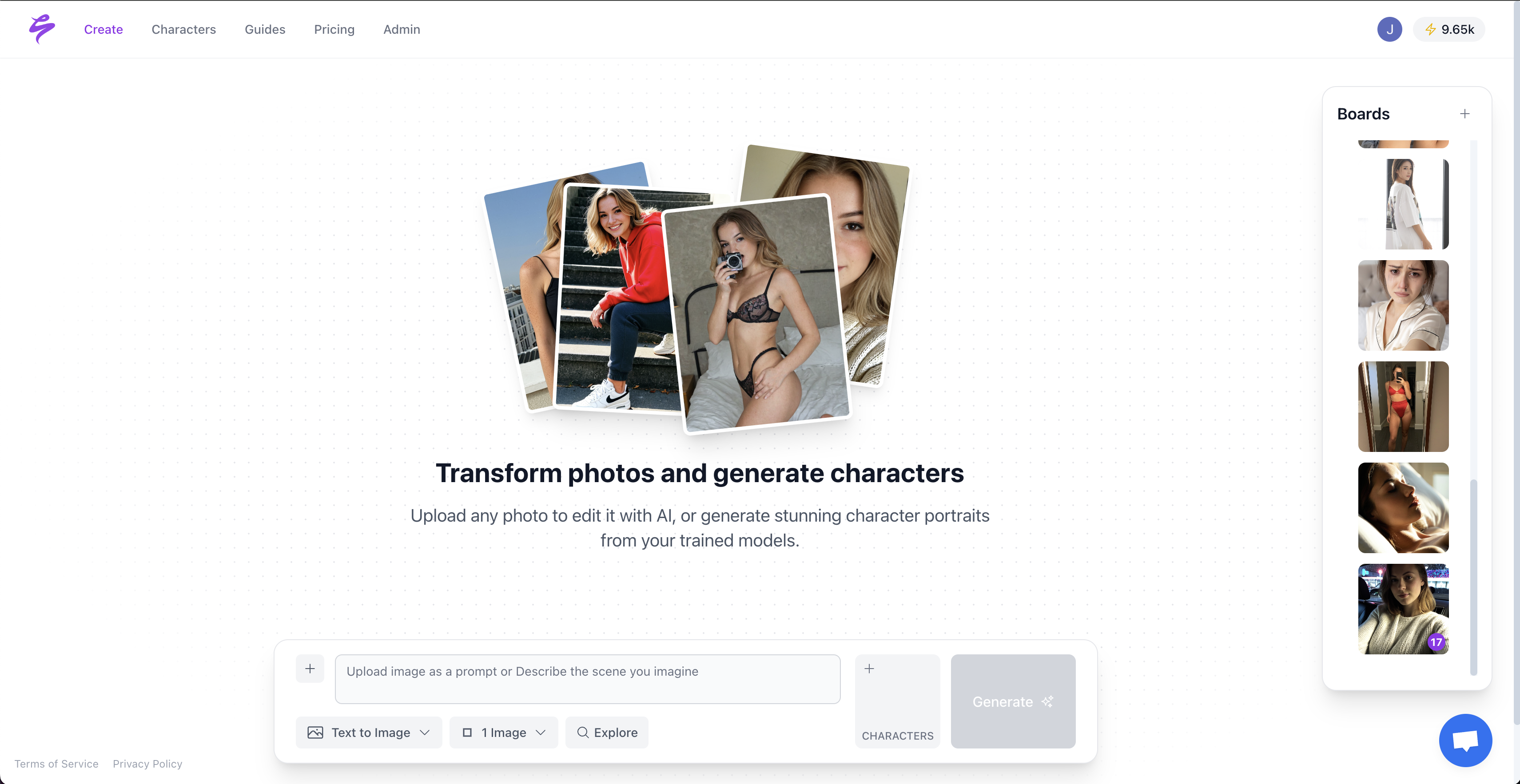
- When you need hyper-real likeness consistency and unlimited content, sign up for Sozee to turn three photos into an infinite on-brand content engine.
Locking Krea AI to Your Brand Look
Brand consistency starts before the first image is generated. A practical training workflow collects 15–20 images, uploads them to a brand kit, tags style attributes, tests outputs, and refines the training set. Apply that logic inside Krea’s interface with these steps.
- Open the Mood Boards tab and upload 5–10 reference images. Select images that share the same lighting temperature, color family, and compositional style, and choose references that look as if they were shot together.
- Set your color palette by entering exact hex values in the palette field. Save brand palette values, typography preferences, style descriptors, and negative constraints verbatim for reuse in every request.
- Enable Brand Lock in the Style Settings panel. This toggle pins your uploaded references as persistent style anchors so every generation inherits the same visual DNA without re-prompting.
- Write a master prompt template that names subject, action, setting, and mood. For example: “[subject] in [setting], [lighting style] lighting, [color palette] palette, editorial photography, 4:5 aspect ratio.” Locking core parameters and reusing them across generations is the primary driver of visual consistency.
- Run three test generations and look for recurring patterns. Replace any reference image that pulls the output away from your intended lighting or setting rather than forcing it to fit.
Once your brand aesthetic is locked in Krea, you are ready to move into high-volume generation. If you want the same consistency without this training step, Sozee generates on-brand content from just three photos, with no mood boards required.
Fast Visual Iteration with the Realtime Generator
The Realtime Generator acts as Krea’s split-panel canvas where prompt changes render live. Validating composition before animating preserves brand aesthetics across short-form content, so this step becomes the foundation of the entire batch session.
- Open the Realtime Generator and paste your master prompt template into the left panel. The right panel renders output within seconds of each keystroke.
- Sketch a rough composition using the canvas drawing tools. Krea interprets strokes as compositional guides, so a simple shape sketch steers subject placement without rewriting the prompt.
- Set aspect ratio to 4:5 for Instagram feed posts, 9:16 for Reels and TikTok, and 1:1 for Stories carousels before generating final frames.
- Iterate with micro-edits by adjusting one prompt variable at a time, such as lighting, background, or wardrobe keyword, and lock each version you want to keep using the Save Frame button.
- Batch-save 8–12 approved frames in one session. Reusing and iterating on base visuals can produce 12–15 image variations without burnout.
Animating Krea Frames into Reels
2026 AI animation tools convert images into short videos within minutes and require no drawing or editing experience, so the Krea Animator provides a direct path from static frame to publishable Reel.
- Navigate to the Video tab and upload one of your saved Realtime Generator frames as the source image.
- Select AI Animator mode and choose a motion preset such as Subtle Drift for product shots, Dynamic Push for lifestyle content, or Cinematic Pan for editorial looks.
- Set frame rate to 24fps for a cinematic feel or 30fps for standard social playback. Krea’s 2026 update adds a 60fps option for high-motion clips intended for TikTok’s enhanced playback tier.
- Write a motion prompt using action verbs tied to the subject, for example: “slow zoom into face, soft hair movement, warm light flicker”. Beat-synced motion and zoom transitions are now template-driven features in 2026 AI video tools, so keep motion prompts short and directional.
- Export as MP4 at 9:16 for Reels and TikTok. Generate three to five clip variations per source frame to build a testable content set in one session.
Start creating now, and let Sozee take your likeness further than any general animator can.

Polishing Content with Generative Edits and 8K Upscaling
The strongest pipeline generates a base image, validates composition, animates it, then upscales and enhances. Krea’s Edit tool handles the final polish stage.
- Open Krea Edit and load your exported frame or clip thumbnail.
- Use the object brush to add or remove elements. Swap backgrounds, remove distracting props, or add branded accessories without regenerating the full image.
- Fix lighting inconsistencies with the Relight tool. Select the subject mask and shift the light direction to match your brand’s established lighting temperature from the mood board.
- Run 8K Upscale on any image destined for Instagram feed or carousel. Higher resolution survives platform compression better and reads sharper on Retina displays.
- Save the upscaled master as a reusable base for future sessions to reduce regeneration time in subsequent weeks.
Exporting and Scheduling for Each Platform
AI can scale content production from 20 to 100 posts weekly without adding staff, but only when the export step follows a clear system. Follow platform specs exactly to avoid compression artifacts that undercut visual quality.
- Instagram feed: Export at 4:5, 1080×1350px, JPG under 8MB. Use the upscaled master for maximum sharpness.
- Instagram Reels and TikTok: Export at 9:16, 1080×1920px, MP4 H.264, under 500MB. Keep clips between 7 and 15 seconds for the highest completion rates.
- Stories and carousels: Export at 1:1 or 9:16, PNG for static frames, and MP4 for motion.
- Schedule in batches using Buffer or Metricool. Batching posts in one dashboard and scheduling them in advance keeps creators consistent without daily production pressure. Accounts posting regularly receive 5x more engagement than sporadic accounts, so aim for 3–6 posts per week on Instagram and 2–5 on TikTok.
- Label each file with platform, date, and prompt variant before uploading so A/B testing results stay traceable.
Common Pitfalls and How to Fix Them
The most common workflow breakdown involves prompt drift that pulls outputs away from your brand aesthetic after several iterations. This drift happens because iterative editing compounds small deviations over time. Fix this by re-pasting the master prompt template at the start of every new generation batch instead of editing the previous prompt in place.
A related consistency issue appears when Brand Lock is disabled, because hex values entered in the palette field are ignored. This behavior causes color drift across your batch. Before every session, confirm Brand Lock is enabled and verify the palette field still holds your saved values after any app refresh.
Export compression problems create another frequent issue when platform re-encoding degrades quality on uploads above recommended file sizes. Fix this by keeping MP4 exports under 500MB and using the H.264 codec. Avoid HEVC for TikTok uploads specifically, since TikTok handles that format less reliably.
Motion blur on fast prompts often affects clips with recognizable faces or products. Aggressive motion prompts push the model to smear fine detail. Fix this by using slow or subtle motion descriptors for any clip featuring a recognizable subject or product.
Measuring Weekly Results and Scaling Up
Define the first milestone as completing one full week of cohesive grid posts plus three Reels in a single 45–60 minute session. After you reach that point, two advanced tactics extend the system’s value.
First, save reusable style bundles by exporting your Brand Lock settings, master prompt template, and color palette as a named preset inside Krea. This step removes the mood board setup work in future sessions and cuts weekly production time further. AI social media tools are reported to save organizations 15–20 hours per week on content creation, scheduling, and reporting.
Second, A/B test prompt variations by changing one variable per batch, such as lighting style, background setting, or wardrobe keyword, and track which variant drives higher saves and shares. A 4% average engagement rate, a 2% share rate for viral content, and 5% monthly follower growth are practical creator KPI targets.
Krea AI works well as a general-purpose tool for this workflow. Its limits appear when you need hyper-real likeness consistency across weeks of content, monetization pipelines, or agency approval flows. That space is where Sozee operates. You upload three photos, and Sozee reconstructs your likeness with accuracy that is indistinguishable from a real shoot, then generates unlimited on-brand photos and videos without training time, technical setup, or daily burnout.
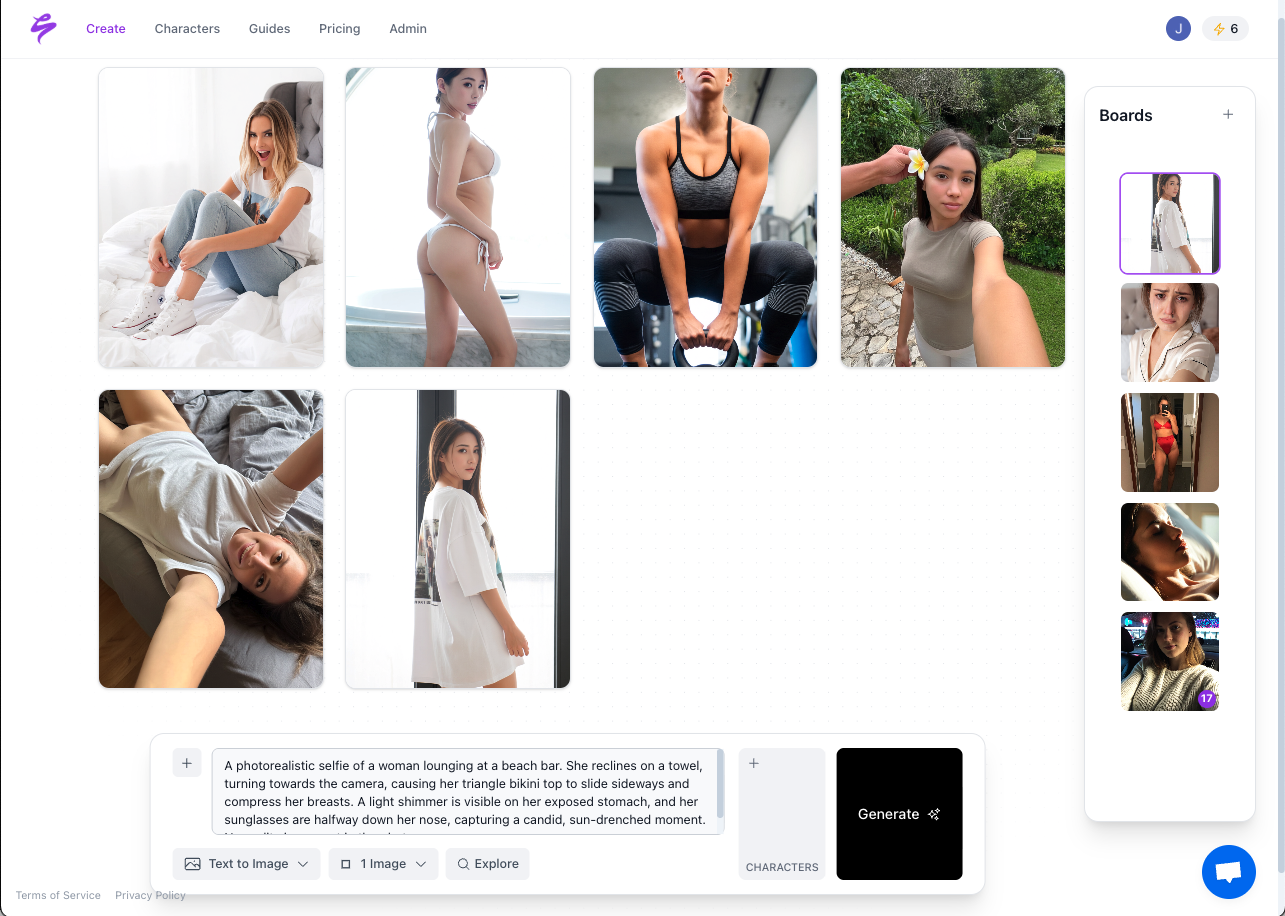
Go viral today and build your infinite content engine with Sozee.
Below are answers to common questions about implementing this Krea AI workflow in your weekly content routine.
Frequently Asked Questions
Is Krea AI free to use?
Krea AI offers a free tier with limited daily generations and access to core tools including the Realtime Generator and basic Animator features. The free plan is sufficient for testing the workflow described in this guide. Pro and higher-tier plans unlock higher resolution outputs, faster generation queues, extended video length, and the full 8K upscaling pipeline. For creators running this workflow weekly at volume, a paid plan removes the generation caps that would otherwise interrupt a batch session.
What is Krea AI best used for?
Krea AI works best for rapid visual ideation, brand mood board development, image-to-video animation, and generative editing of existing assets. Its Realtime Generator is particularly strong for iterating on a visual concept in seconds without switching tools. It functions as a general-purpose creative tool, so it handles a wide range of aesthetics well but does not specialize in creator monetization workflows, likeness consistency across long content series, or platform-specific fulfillment pipelines.
How do you use AI to make social media content?
The most repeatable approach uses a four-stage pipeline. First, generate a base image using a locked brand prompt. Next, validate the composition, then animate it into a short clip, and finally upscale and export at platform-specific specs. Batch all stages in a single weekly session rather than producing content day by day. Schedule the outputs in advance using a tool like Buffer or Metricool so posting cadence stays consistent even when production is paused. The workflow in this article applies that pipeline specifically to Krea AI’s 2026 toolset.
What is the Krea AI Realtime Generator?
The Realtime Generator functions as Krea’s live split-panel canvas where text prompts and sketch inputs render as images in near real time. Changes to the prompt or canvas strokes update the output within seconds, which makes it faster for iterating on composition and style than tools that require a full generation queue. It supports multiple aspect ratios and integrates directly with Krea’s Brand Lock and mood board system, so style references stay active throughout the session.
How many posts per week should creators aim for with an AI workflow?
The posting frequencies outlined in the Export and Scheduling section remain the practical targets, with 3–6 posts weekly for Instagram and 2–5 for TikTok. The more important variable is consistency, because posting on a reliable schedule outperforms sporadic high-volume bursts. A single 45–60 minute weekly batch session using the workflow in this guide can produce enough assets to cover both platforms for the full week, including static feed posts, Reels, and Stories variations.
Conclusion
The workflow above turns a single weekly session into a full platform-ready content set that includes a brand-locked mood board, batched Realtime Generator frames, Animator-produced Reels, 8K-upscaled finals, and a scheduled posting queue. Krea AI’s 2026 toolset makes that possible for any creator willing to invest the setup time. When the workflow scales to the point where general-purpose limits appear, such as inconsistent likeness across weeks, no monetization pipeline, or no agency approval layer, Sozee becomes the direct upgrade. You provide three photos, and Sozee returns a likeness-driven engine that produces on-brand content at scale without burnout.
Get started with Sozee and turn your likeness into an infinite content engine.