
Key Takeaways
- AI-generated photos from tools like Stable Diffusion and Midjourney often include anatomical errors, blurry details, and unnatural textures that hurt engagement on OnlyFans and TikTok.
- A focused 10-step workflow, starting with upscaling, artifact cleanup, color correction, and likeness consistency, turns raw AI outputs into hyper-realistic, monetizable content in 15–30 minutes per image.
- Core tools include Magnific AI or Topaz for upscaling, Photoshop Generative Fill for fixes, Lightroom for lighting, and batch processing that can cut editing time by 50%.
- Advanced steps center on creator needs, such as maintaining character likeness, platform-specific exports, and video adaptations that increase revenue across social media.
- Avoid over-editing uncanny valley effects by keeping natural imperfections; start with Sozee for hyper-realistic generations that reduce post-processing.
Why AI Photo Flaws Make Post Processing Non‑Negotiable for Creators
Common AI generation flaws directly affect how fans respond to your content. Stable Diffusion scores poorly on photorealism (★★★☆☆) and consistency (★★★☆☆), so many images need serious correction. Stable Diffusion also produces wildly inconsistent results out-of-the-box, with many first attempts turning out mediocre.
The most frequent problems include anatomical errors, synthetic skin textures, flat lighting, and distorted proportions. Midjourney and Stable Diffusion significantly improved on anatomical deformities like extra fingers in 2025, which shows how widespread these issues were.
For creators who monetize content, these artifacts kill trust. Fans spot artificial-looking images instantly, which lowers engagement and purchase conversions. Clean post-processing turns flawed AI outputs into premium content that supports sales and builds a believable, consistent persona.
Core 4-Step AI Photo Editing Workflow for Fast, Professional Results
This four-step workflow gives you reliable, professional-quality images without endless tweaking.
Step 1: Upscale for Sharper Detail
Use a strong upscaler before you start detailed edits. Magnific AI ranks #1 for upscaling AI images with standout quality, while Topaz Gigapixel AI offers up to 6x upscaling with excellent detail preservation. Pick Magnific for creative enhancement and Topaz for clean, precise detail recovery.
Step 2: Clean Up Artifacts and Deformities
Fix obvious AI mistakes before color work. Use Photoshop Generative Fill to repair hands, faces, and warped body parts. Photoshop Generative Fill and Generative Expand can correct issues like broken fingers, missing limbs, or strange textures.
Step 3: Correct Color and Lighting
Balance exposure and color so the image feels natural. Apply Lightroom AI masking for targeted adjustments to skin, background, and clothing. Luminar Neo Sky AI and Relight AI fix flat lighting problems that often appear in AI generations.
Step 4: Polish Texture and Realism
Refine skin and surfaces without creating a plastic look. Aftershoot Retouching smooths skin and cleans blemishes while preserving natural texture. Add a light film grain layer to break up overly smooth areas and make the image feel like a real photo.
| Tool | Best For | Pros | Price Range |
|---|---|---|---|
| Magnific AI | Creative upscaling | High-quality AI detail and enhancement | Subscription |
| Topaz Gigapixel | Detail preservation | 6x upscaling, batch processing | One-time purchase |
| Photoshop | Artifact removal | Generative Fill, precise control | Monthly subscription |
| Lightroom | Color correction | AI masking, batch processing | Monthly subscription |
Advanced 6-Step Workflow for OnlyFans and TikTok Monetization
These six advanced steps adapt your polished images to real creator workflows and revenue goals.
Step 5: Lock In Likeness Consistency Across Sets
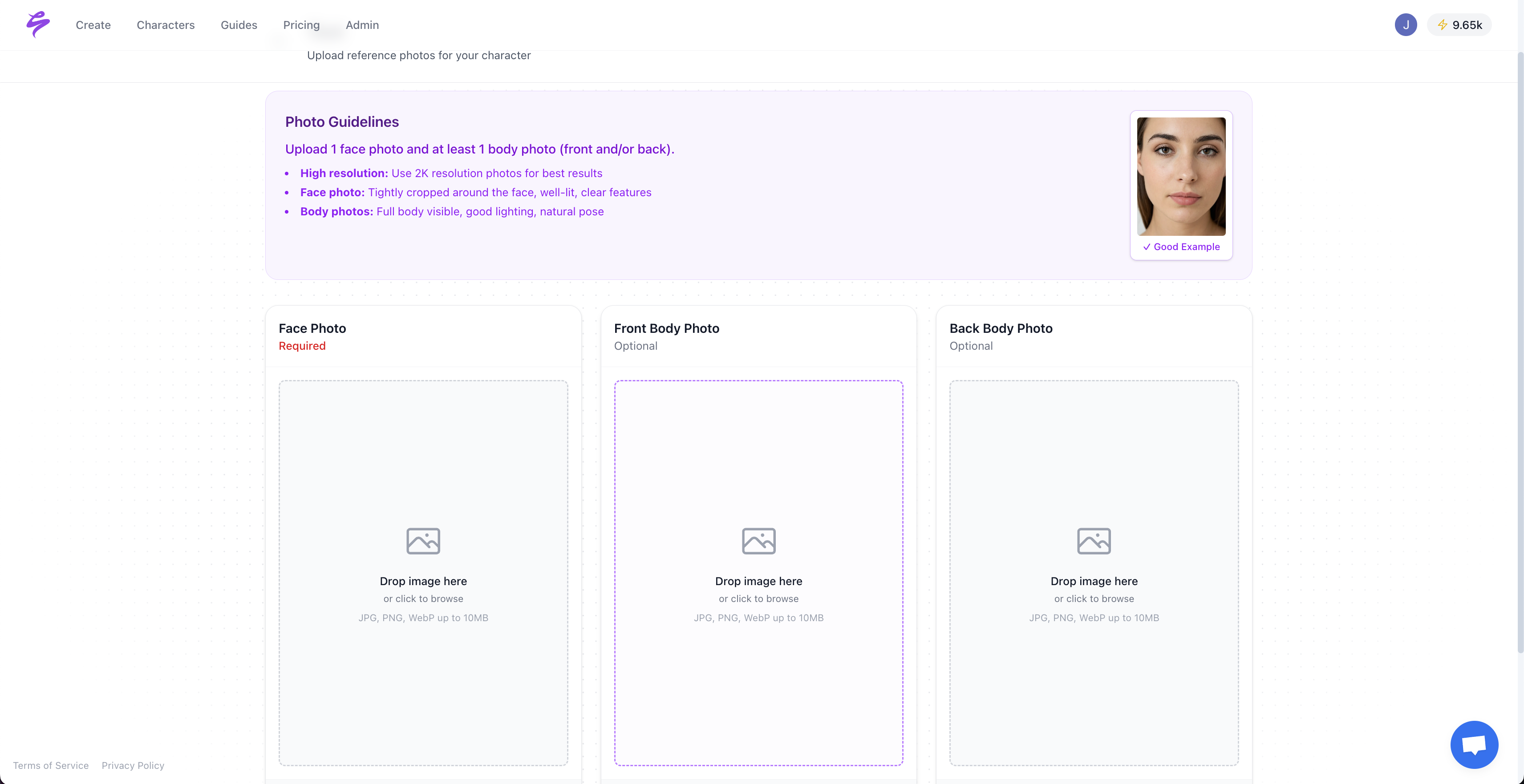
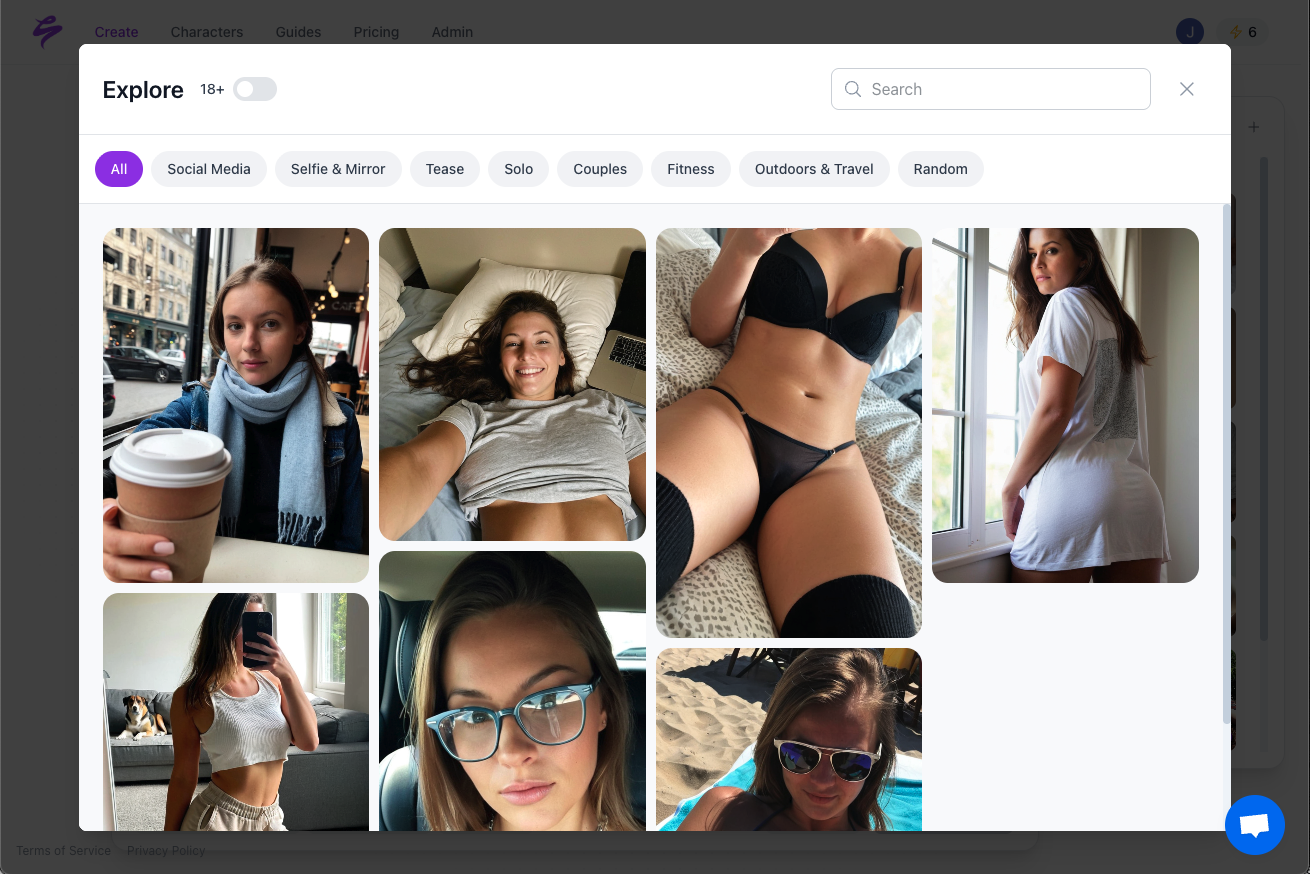
Keep your character or persona consistent across every drop. Use reference photos and a stable style for each series. Sozee’s hyper-realistic likeness recreation from just three photos helps you start with consistent faces and body types before editing.
Step 6: Adjust Exposure and Cropping for Each Platform
Shape framing and brightness around where the content will live. Create SFW teasers that fit TikTok and Instagram guidelines while hinting at more explicit sets. Use these teasers to guide fans toward premium NSFW content and strengthen your sales funnel.
Step 7: Refine Hands and Faces With Precision
Spend extra time on hands, eyes, and mouths because fans focus on these areas first. Apply targeted corrections with brushes and masks instead of global filters. Work on separate layers and keep backup versions so you can roll back if the image starts to look artificial.
Step 8: Build a Batch Processing System
Turn your favorite look into a repeatable system. Workflow automation with Imagen AI learns your editing style and batch processes large image sets, cutting post-production from days to minutes. Create Photoshop actions and Lightroom presets so every set in a series shares the same visual style.
Step 9: Turn Stills Into Short-Form Video
Extend the life of each image by repurposing it as video. Convert static shots into TikTok and Reels clips with slow zooms, pan effects, and simple transitions. Add light motion only, so the content still feels like a photo while taking advantage of video reach.
Step 10: Export for OnlyFans, Social, and Promo Use
Export several versions of each asset for different channels. Save high-resolution files for OnlyFans or paid platforms, lighter compressed versions for stories and feeds, and watermarked versions for promos and reposts. This approach protects your work while keeping uploads fast.
Start creating now with Sozee’s advanced AI generation
AI Image Processing Tools Compared for Creators
Match your tool stack to your workflow instead of chasing every new app.
| Tool | Best For | Price | Sozee Integration |
|---|---|---|---|
| Sozee | Minimal post-processing | Subscription | Native |
| Topaz Photo AI | Detail enhancement | $199 one-time | Compatible |
| Magnific AI | Creative upscaling | $39/month | Compatible |
| Photoshop | Comprehensive editing | $22.99/month | Compatible |
Sozee stands out by generating hyper-realistic base images that need far less cleanup. This saves creators hours of editing while still meeting professional quality standards.
How Sozee Cuts AI Photo Post-Processing Time
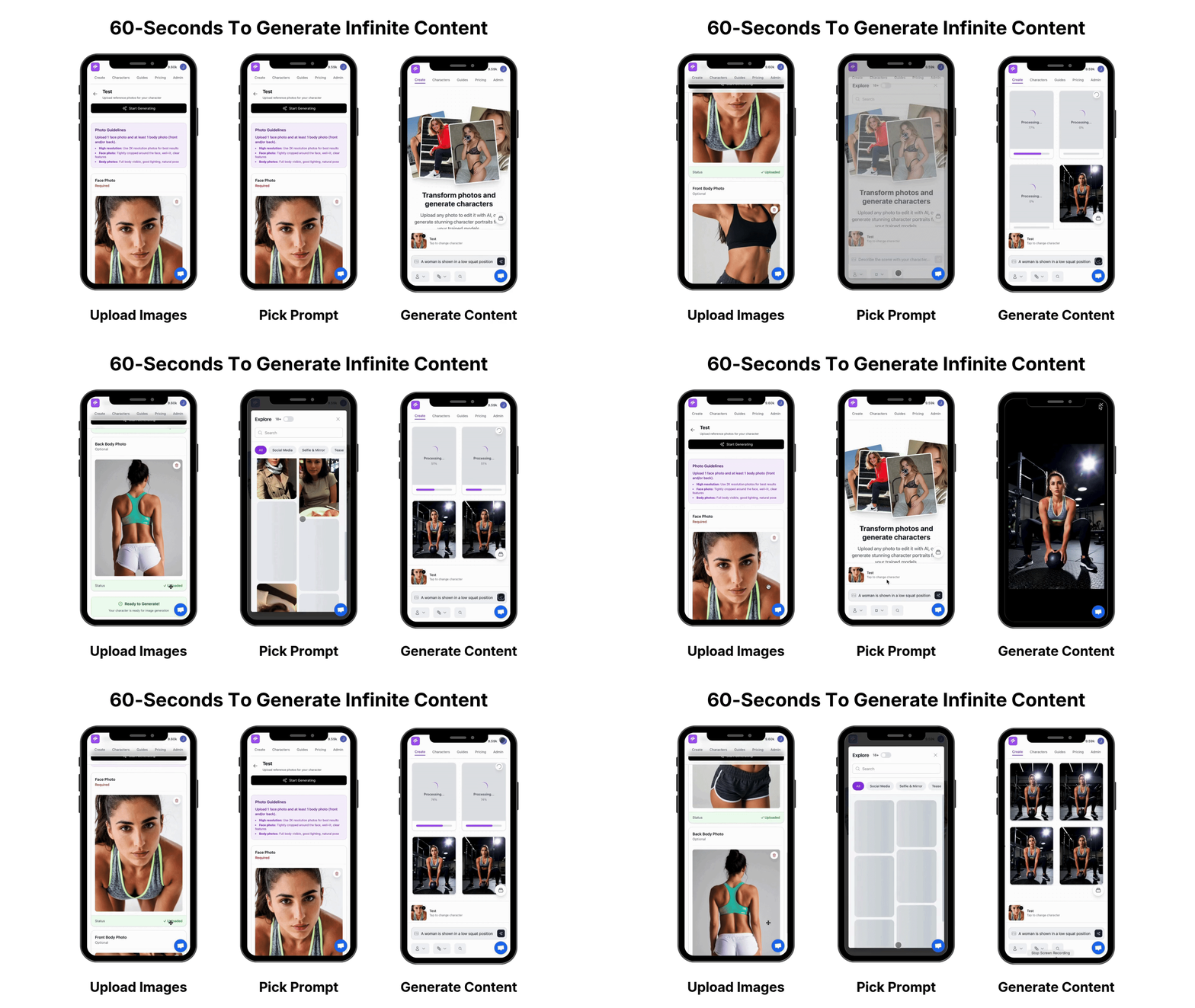
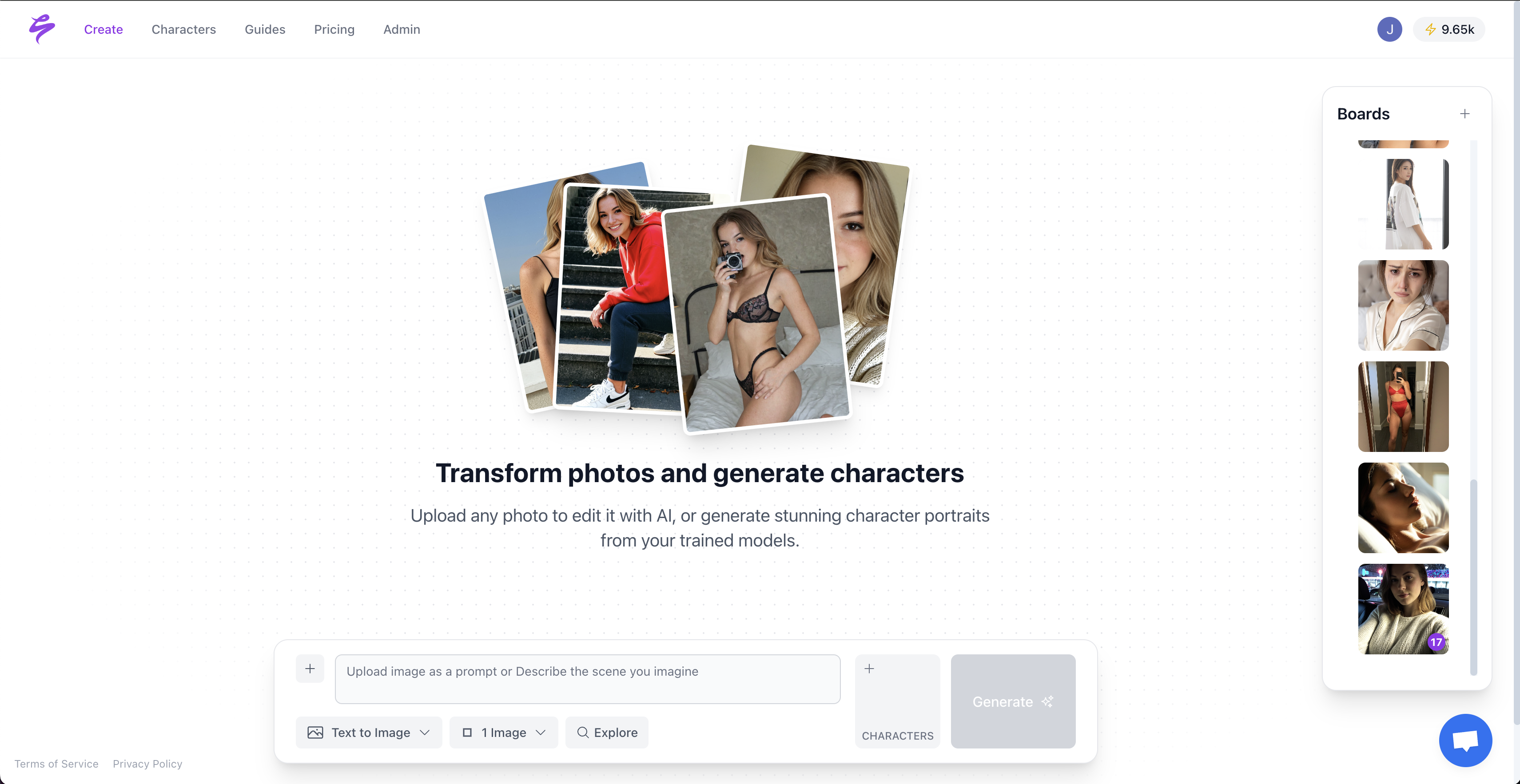
Sozee improves quality at the generation stage so you spend less time fixing problems later. Upload three photos and Sozee reconstructs your likeness with high accuracy, which removes many of the inconsistencies seen in other AI tools.
The Sozee workflow keeps editing light. Generate hyper-realistic base images, then use built-in AI-assisted tools for skin tone, hands, lighting, and angles. Export directly to your main platforms once the image looks right.
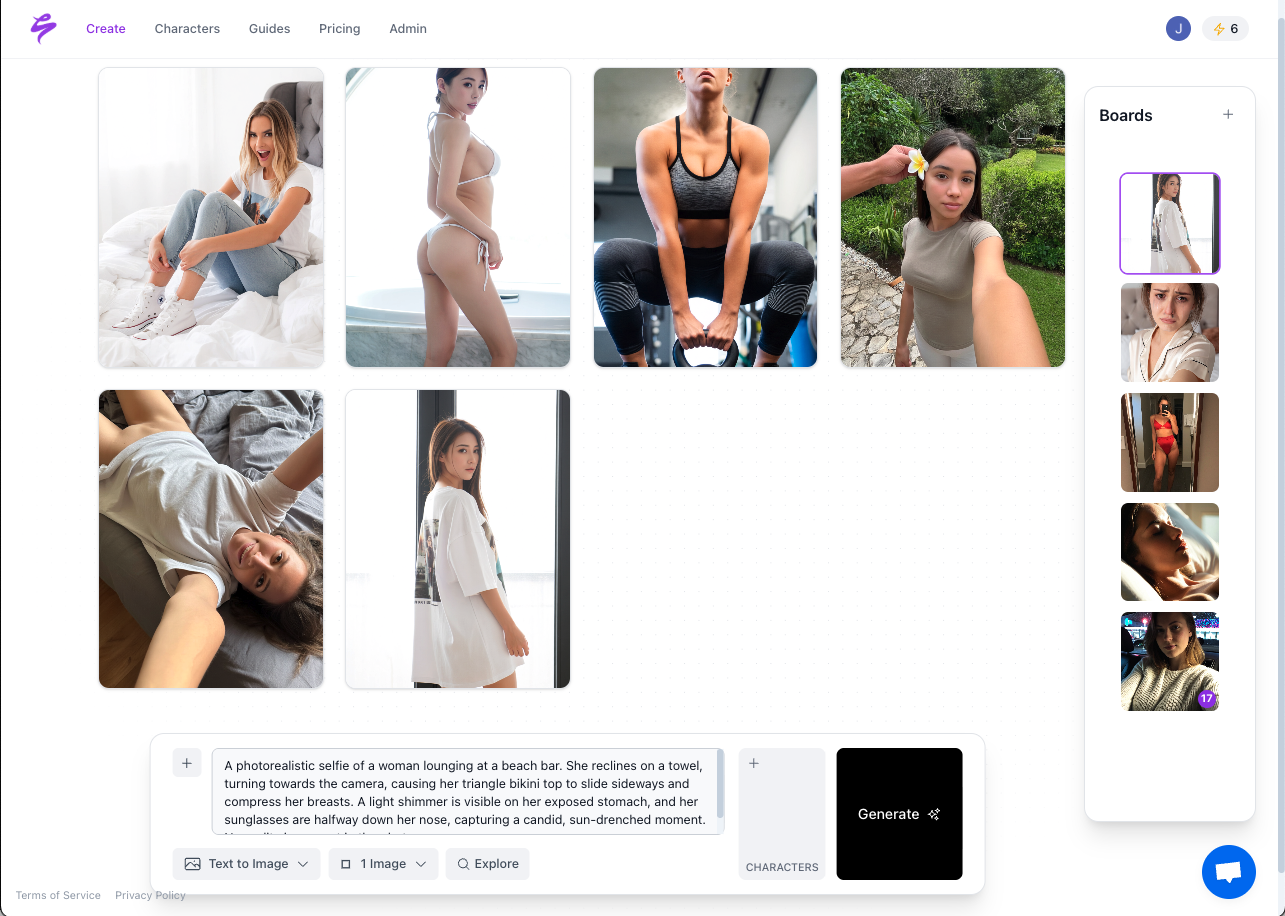
Unlike Stable Diffusion’s inconsistent outputs that often require multiple tweaks and model changes, Sozee focuses on delivering consistent, monetization-ready images from the first generation.
Monetizing Polished AI Content: Real Creator Tactics
Creators who treat post-processing as part of their brand see stronger results. Build cohesive content sets that tell a visual story, keep lighting and color grading consistent across each series, and develop a recognizable editing style that fans associate with you.
Visitors referred by AI platforms spend 68% more time on websites than those from traditional organic search, which shows how engaging AI-enhanced content can be when executed well. Agencies report creating a month of content in one afternoon with Sozee’s streamlined pipeline, freeing time for fan interaction and business growth.
Common AI Post-Processing Mistakes and Community Fixes
Over-editing ranks as the fastest way to create uncanny valley images. Fans notice when skin looks too smooth or lighting feels impossible. Stable Diffusion base models often need negative prompts to reduce common flaws, yet heavy correction can strip away the small imperfections that make images believable.
Keep subtle skin texture, allow minor lighting variations, and avoid extreme smoothing that turns people into plastic dolls. Aim for enhancement, not perfection. Go viral with Sozee’s naturally realistic generations that avoid these common pitfalls.
FAQ: Stable Diffusion Post Processing and Creator Workflows
How to process a photo with AI for maximum realism?
Begin with a strong base generation using tools like Sozee, then follow the four core steps. Upscale with Magnific AI or Topaz Gigapixel, clean artifacts using Photoshop Generative Fill, correct color and lighting in Lightroom, and finish with subtle grain for realistic texture. Preserve natural imperfections instead of chasing flawless skin or geometry.
What is the best post-processing software for Stable Diffusion outputs?
Photoshop works best for artifact removal and detailed corrections. Lightroom handles color grading and batch work. Topaz Photo AI excels at upscaling and noise reduction. For creators who value speed, Sozee reduces most post-processing needs by generating hyper-realistic base images from the start.
Does Sozee need extensive post-processing like other AI generators?
No. Sozee’s hyper-realistic generation technology reduces the amount of editing required compared to many traditional AI generators. Advanced likeness reconstruction and built-in refinement tools solve most quality issues during generation, so you can focus on content planning and monetization.
How long should AI photo post-processing take for creators?
With an efficient workflow, professional post-processing usually takes 15–30 minutes per image. Batch processing can bring this down to 5–10 minutes per image for larger sets. Many Sozee users spend even less time because they start from cleaner, more realistic generations.
What is the biggest mistake in AI photo post-processing?
Over-editing causes the most damage. It often produces unnaturally perfect images that trigger uncanny valley reactions. Successful creators keep small imperfections and natural variations so AI-generated content looks like real photography and still reflects human character.
Start Using the Best Workflow for Post Processing AI Photos
This 10-step workflow turns raw AI generations into professional, monetizable content that supports engagement and sales. When you combine these techniques with Sozee’s hyper-realistic generation platform, you can scale high-quality content while keeping editing time under control.
The creators who win next will scale output without losing authenticity or visual quality. Get started with Sozee today and upgrade your AI photo post-processing workflow.